Battery Comparison for GPS Tracking Device

Overview

Many different types of batteries may be used with Raveon’s M7 series of GPS transponders.  This Technical Brief describes how well some common battery types will work with the M7 radios.

Actual battery life will vary based upon how often the M7 GPS transponder transmits, but the data in this Technical Brief may be used to predict the battery life of most configurations.

Test Setup

For the tests in this brief, a UHF GPS transponder, model RV-M7-UC-GX was configured in GPS mode 2 to transmit its position every 10 seconds.  In GPS mode 2, the radio’s receiver is on 100% of the time, and the current draw of the M7 was an average of 90mA.  The peak current draw was 2.1 amps for 68mS each time the M7 transmitted its GPS position.

Summary Data

Brand Type Recharge-able mAh Life
(RX on)
Life
(RX off)
Duracell Alkaline NO 1600 18 hours 36
Energizer Lithium NO 2500 28 hours 56
Lenmar NiMH Yes 1500 17 hours 34

Duracell Alkaline

These batteries are the common Duracel batteries found at most department stores.

Test Result Summary

Initial Voltage:                                   12.57 volts

Voltage at ½ discharge:                   10.2 volts

Usable life (hours)                           18 hours

Voltage drop when transmitting       2.4V  (1.1 ohm resistance)

Approximate mAh capacity             1600mAh

Discharge Curve

Transmit Transient

The plot below shows the dip in voltage as the transmitter turns on and off.


Summary

The Duracell is an OK battery to power the M7 transponder.  But its high internal resistance will reduce the RF power output after the first few hours of operation.  The DC to the radio should stay above 9V while transmitting for full power, above 8V for 3-4 watts.


Energizer Lithium

These batteries are the common Energizer Lithium batteries for cameras and digital electronics found at many department stores.

Test Result Summary

Initial Voltage:                                      12.1 volts  (14V for a few moments)

Voltage at ½ discharge:                      12.0 volts

Usable life (hours)                              28 hours

Voltage drop when transmitting          3.5V  (1.6 ohm resistance)

Approximate mAh capacity                2520mAh

Discharge Curve

Transmit Transient

The plot below shows the dip in voltage as the transmitter turns on and off.

Summary

Even though the internal resistance of the cell is higher than the alkaline, the Energizer Lithium is a good battery to power the M7 transponder.  Its high internal resistance will not reduce the RF power output because its voltage is fundamentally fairly high.  The DC to the radio should stay above 9V while transmitting for full power, above 8V for 3-4 watts, so the 3.5V dip means the radio will have full power at 12.5V, and 3-4 watts out at 11V DC at the battery pack.


Lenmar R2G NiMH pack, 2150mAh cells

These batteries are Nickel Metal Hydride rechargeable batteries.  They were fully charged before the test.

Test Result Summary

Initial Voltage:                                      11.0 volts

Voltage at ½ discharge:                      10.3volts

Usable life (hours)                              17 hours

Voltage drop when transmitting          2.0V  (.95 ohm resistance)

Approximate mAh capacity                1500mAh

Discharge Curve

Summary

These batteries should be a good power source for the M7 GX transponder.

The internal cell resistance is low, but the voltage is also low. The RF power output stayed at full power for most of the life of the battery, dropping to about 4 watts at the end of the battery life.  The double dip at end of live was due to the fact the radio keep working down to 6 volts (albeit with almost no RF output because the RF PA is off), and the batteries keep putting our very low voltage for another couple hours.


Raveon Technologies Corporation

990 Park Center Drive, C

Vista, CA 92081

sales@raveontech.com

760-727-8004

Crystal Reports Installation Issues

Integrated into RavTrack PC GPS Tracking software is a powerful report generating software program called Crystal Reports from SAP.

As part of the RavTrack PC installation, a run-time redistribution module is installed on the computer along with RavTrack PC. The Crystal Reports run-time module allows crystal reports to be generated by RavTrack PC, and viewed by the user.  But, it does not include the report editor.  To customize your own Crystal Reports, you will need to by a full-version of Crystal Reports 10.   The run-time module included with RavTrack PC will give you the ability to view the Crystal Reports you generate with RavTrack PC’s report generator.

Installation Problems

There is often an installation error with the Crystal Reports run-time on certain Windows Vista machines.   If during the installation of RavTrack PC you get an error message about Crystal Reports, you can ignore it because there is a simple solution that can be performed after the installation of RavTrack PC is complete.

If, after RavTrack PC is installed and operating, you get an error when trying to open the report generator in RavTrack PC  (View > Reports), then you should manually install the Crystal Reports 10 run-time module.  To do this, perform the following steps:

  1. Close RavTrack PC.
  2. Install the 32 bit version of the Crystal Reports Runtime for Visual Studio if you are using for Windows XP or a 32 bit version of Vista, 7, and 8.  Install the 64 bit version if you are using the 64 bit versions of Windows OS.
  3. Download the Crystal Report run-time module from Raveon’s server at:
    32bithttp://ravtrack.com/downloads/CR_install_32bit_13_0_5.zip
    64bithttp://ravtrack.com/downloads/CR_install_64bit_13_0.zip
  4. Unzip the file to your local disk.
  5. Open Explorer, and go to the directory where the .zip file was stored to.
  6. Double click on the  CR_install_xxxxxx.msi file to run the installation program.
  7. Follow the instructions in the installer, and let it install.
  8. Once the Crystal Reports installer has finished, start RavTrack PC, and verify the report features are working.

Configuring a Microsoft SQL Server Installation

With release of RavTrack PC vesion 3.1, RavTrack PC supports Microsoft’s SQL Server 2005 and 2008.  By default, RavTrack PC uses Microsoft Access databases and tables to store its inforamtion.  Access is a very good choice for a database when RavTrack PC software is ging to be run on a single workstation, in a vehicle, or when the number of concurrent users is small. 

But, when the number of users running RavTrack PC increases, or when the size of the Log table is large, Microsoft’s SQL Server is a superior product, albeit a bit more complex to install and manage. 

You can download RavTrack PC evaluation copy free as well as the technical manual from Ravoen’s web site at: http://ravtrack.com/RavTrack-PC-Software.html 

If you are going to use a Microsoft SQL Server 2005 or SQL Server 2008 database with RavTrack PC, then you will need to prepare the SQL Server first, before running RavTrack PC.  Perform the following steps:

SQL Server Installation

  1. Install Microsoft SQL Server or SQL Server Express.  SQL Server Express is available from Microsoft at no charge. It may be downloaded at: http://www.microsoft.com/Sqlserver/2005/en/us/express.aspx
  2. Use the “SQL Server Configuration Manager” software program that is installed with MS SQL Server to configure the server.
  3. Using the SQL Server Configuration Manager, enable the TCP/IP Client Protocol (SQL Server Configuration Manager > SQL Natice Client Configuration > Client Protocols > TCP/IP).
  4. Also download and install the “Management Studio” for SQL Server.  The Express version may be downloaded at the same website as the SQL Server Express is downloaded from.
  5. Set the default transaction time-out of Management Studio to 1000 seconds (Tools> Options> Designers> Transaction Timeout)
  6. Using the Management studio, create a database with the name “RavTrack”. You do not need to create any tables in the database, as RavTrack PC will create them the first time it connects to this database.
  7. Using Management Studio, create Login accouts for all users what will be accessing the SQL database using RavTrack PC. 

Troubleshooting:

If you are having trouble connecting RavTrack PC to your SQL server installation, check the following items:

  1. Shut down RavTrack PC using FIle > Exit, and restart it.  Whenever the database type is changed in RavTrack PC, you should restart the application.
  2. Install Microsoft’s Management Studio applicationon the computer running RavTrack PC.  Use Management Studio to connect to the server to verify that the SQL Server is running properly and accessible from the workstation.
  3. Make sure the the TCP/IP Client Protocol is enabled on the SQL Server.
  4. Make sure you are logged into RavTrack PC as an administrator with the ADMIN account.
  5. Make sure you have purchased and installed an “Unlimited” license on RavTrack PC. The “Limited” version will not connect to an SQL Server.
  6. Make sure you created a database on the SQL server named “RavTrack”.  The RavTrack database needs to be on the server before running the RavTrack PC program.  Yse the Management Studio to create the “RavTrack” database on the server.
  7. You should have an account on the SQL Server computer with the same name and password as the name/password that you used to log onto Windows on the RavTrack PC computer. If you have not done this, create a Windows user account and password on the SQL Server computer to match the Windows user/password on the RavTrack PC Windows login account.
  8. Make sure the rights assigned to the login account are at least db_reader, db_writer, and db_admin. 

Verifying Communications with RavTrack PC

RavTrack PC receives $PRAVE messages from a Raveon GPS tracking transponder, and uses the information in the $PRAVE message to plot the position and display the status of tracked vehicles and personnel.

The $PRAVE messages come out of the M7 GX transponder, when it is configured in GPS mode 2.  The serial port of the M7 GX transponder must be connected to the PC running RavTrack PC.   This connection may be a direct RS232 connection, or it may use a terminal server to convert the RS232 from the M7 GX transponder to Ethernet. The Ethernet connection is then made to a LAN or WAN so that RavTrack PC can receive the GPS positions via the nework connection.

To verify that RavTrack PC is receiving $PRAVE messages, you can look at the communications statistics window within RavTrack PC, and see if $PRAVE messages are comming out.

commstats

In the “Messages In” column, there are two numbers (xxx/yyy)  The first number xxx is the total number of messages, and the second number, yyy, is the total number of $PRAVE messages that RavTrack PC has received.

If the communications with the M7 GX transponder is OK, the second number will increment each time a $PRAVE message is received, which is each time a transponder reports in. In the above example, RavTrack PC has received 311 position reports using its network connection.

If the second number is 0, but the first number is not zero (ie  123/0)  then the connection to the M7 GX is probably OK, because some messages are coming in.  These are usually the $GPGGA/RMC type messages output from the local GPS in the M7.  They are not over-the-air position reports.  Because the first number is incrementing, the connection to the M7 is OK. But, because the second number is 0, there are not $PRAVE messages coming in.  The most likely reasons that there are not $PRAVE messages are:

1.  All transponders are turned off.

2.  The UHF or VHF antenna to the M7 GX used with RavTrack PC is not connected.

3. The encryption keyphrase is not set corectly, and the My GX cannot receive the position reports.

4. All transponders are out of range of the M7 GX used with RavTrack PC.

5. The transponders are configured on a different RF frequency.

Hopefully you find this information helpfull.  Monitoring the communication statistics is an excellent way to verify the performance of your RavTrack GPS tracking system.  RavTrac PC automatically monitors the statistics, and will turn the communication status button on the bottom of the screen red if no messages are received for a long period of time, indicating that the communications with the transponder used to receive $PRAVE messages has failed.

Microsoft SQL Server Version Comparison

Microsoft SQL Server may be used as the database engine for the RavTrack PC AVL system.

A free version is available from Microsoft, called “Express”.  For small AVL systems where the number of tracked vehicles is small (< 25) and the update rate is fairly slow (< 30 seconds), then the EXPRESS version is probably a good choice. But, for systems requiring higher performance, Microsoft provides a number of high-performance options.

The following table describes the primary differences between the various SQL implementations.

Scalability and Performance

Feature Express Workgroup Standard Enterprise Comments
Number of CPUs 1 2 4 Max OS supported Includes support for multicore processors.
RAM Used
1 gig(GB) 3 GB OS maximum OS maximum Memory limited by operating system.
64-bit Support Windows on Windows (WOW) WOW Available Available
Database Size 4 GB No Limit No Limit No Limit
Partitioning Available Support for large-scale databases
Parallel Index Operations Available Parallel processing of indexing operations
Indexed Views Available Indexed view creation is supported in all editions.

Multiple Base Receivers vs Repeaters in a RavTrack System

Often times deploying one base receiver with a highly mounted omni-directional antenna will provide adequate coverage for a RavTrack vehicle tracking station. .  However, in some circumstances, especially as the area of operation increases in size, this is not sufficient to cover the entire tracked area. Additionally other factors may compel you to install multiple base receivers, or one or two system repeaters, with antennas located at distributed points around your tracked area..

First, before you determine that one base receiver location is not sufficient, consider your area for tracking.  RavTrack radio coverage can roughly be compared to a 5 watt  UHF or VHF radio system.  The Ravtrack system coverage is typically similar to the voice system coverage within the same frequency band, although not necessarily identical.

Working from your primary base station try mounting the base station antenna as high as possible to cover the desired territory.  In some cases this may mean moving the antenna away from the control room to achieve the best coverage.  A skilled RF technician familiar with your area can probably determine a good antenna location, sometimes by performing a site survey, or simply by experience.

Be careful to minimize the length of antenna cable that links the antenna to the receiving modem, and by all means avoid looping or coiling the cable.  To do this may cause you to relocated the receiving modem from nearby the tracking PC.  RS232 serial communication links have strict distance limitations.  However, if you can  use Ethernet/IP communications between the base modem and the computer then you can use a ‘terminal server’ (AKA telnet server, serial-IP convertor) and install the base receiving modem onto the Ethernet/IP backbone.  In this configuration the GPS messages received by the base station are carried across the network from the base receiving modem to the tracking PC as a telnet type of IP service..

Using an IP backbone is a common approach in distributing several base receiving stations around your area to provide thorough radio coverage of the area in question..  You will need an Ethernet/IP backbone with points of presence at all base receiving sites to collectively link all these to your tracking PC.  It is best to check with your I.T. department and allow them to use certain network hardware that they prefer.  Please note that the Ethernet/IP backbone does not necessarily need to be wired (copper or fiber) as a wireless backbone may be suitable as well.  There are a number of topologies available.

Ensure your tracking software can acquire the telnet traffic when using this approach, and in some cases, if the PC cannot ascribe to the telnet service directly you may use another telnet server at the PC location to interface with the IP backbone and reconvert the GPS messages back to their original serial output state. Also ensure that you can ascribe to multiple message feeds as you will have a message feed coming from each base receiver station.  Raveon’s RavTrack PC tracking software supports up to 6 base station modems either through direct connections or telnet, and nearly unlimited base receiver connections by utilizing the Raveon CiGorn gateway.

For much more detail on using terminal servers see application note 140 “Using an Terminal Server to expand your Ccverage area” at the following link.

http://ravtrack.com/pdf_appnotes/AN140(RavTrackTermServ).pdf

If this approach is not practical, which can especially be the case if no IP backbone is available,  you may consider using, one or more repeaters..  For a RavTrack system, the same model of transponder that you use in your vehicles, or as a base station, can readly be programmed as a store-and-forward repeater.  As a repeater may transmit a lot, the only physical alternation you may need to make as a transponder is to increase the cooling efficiency of the transponder perhaps by adding a heat sink or CPU cooling fan atop the case. Remember that a system repeater, just as a base receiver, will need power, and repeaters will draw more power than receivers as they transmit quite frequenctly.  Try to optimize the height of the antenna above the ground in considering repeater locations.  For more information on antennas see the following tech blog “Antennas for a RavTrack vehicle tracking system”:

http://ravtrack.com/GPStracking/2009/antennas-for-a-ravtrack-vehicle-tracking-system/

A RavTrack system repeater will repeat all the GPS messages it receives back out, to be received elsewhere within its area of coverage, so you will always need at least one transponder configured as a base receiver.  It is possible to configure a transponder to simultaneously act as a receiver and repeater.  This is sometimes done to support a second tracking computer  physically located away from a primary computer.   Remember as well that in- vehicle transponders will transmit their own position information will receiving similar information from from other fleet members within radio range, a feature fairly unique to RavTrack.  If you will install tracking displays inside your vehicles to take advantage of this feature, the vehicle-to-vehicle tracking range will benefit from a system repeater even if only one base receiver is used, so you may with to configure your receiver as a repeater as well.

Please consider that a store-and-forward repeater first receives GPS messages very briefly and then repeats out that same transmission.  So any RavTrack repeater will take time to receive then repeat.  Because of this the total duration of a transmission should be extended by lengthening the duration of each transmission slot in the system, which reserves TDMA system time for each repeated message.   System timing parameters and overall system performance should be considered.  Deploying multiple repeaters can further impact system-wide timing, so be judicious in their deployment.   For more information on system timing with and without repeaters please refer to the tech blog  “TDMA Time Slots”:

http://ravtrack.com/GPStracking/2009/tdma-time-slots/

If you believe your scenario will require you to install either multiple base receiver stations or one or more system repeaters we encourage you to contact us so we can help you work towards the best approach for your particular system.

Antennas for a RavTrack vehicle tracking system

In a RavTrack system you will need antennas for vehicles, as well as base stations, and possibly repeaters if your particular system uses any repeaters.   Here will will discuss common antennas for all three uses.

The Raveon “GX” series of tracking transponders used in a RavTrack system can be configured to operate as a vehicle unit, a base station, or a repeater, all by software configuration.  Each GX transponder will have 2 antenna connections.  One is for a GPS antenna, and the other for a UHF antenna.

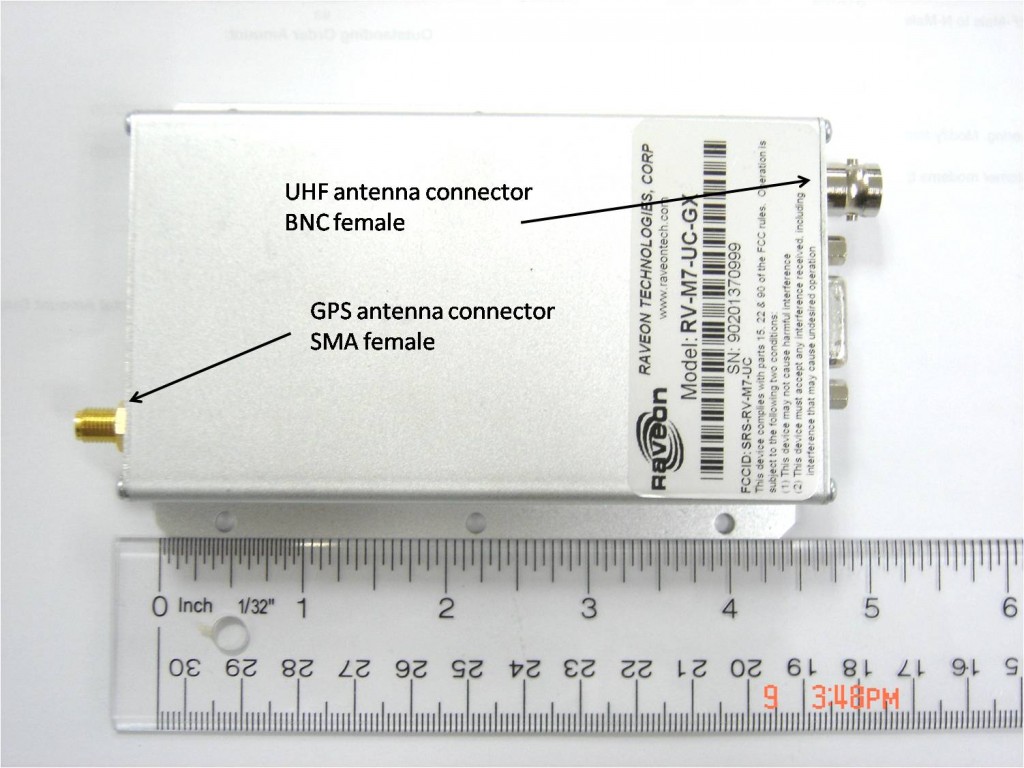
Here is a picture of the GX transponder in the standard enclosure.  Note that the GPS antenna connector is an SMA female, while the UHF connector is a BNC female.  They are at opposite ends of the transponder.

transponder-and-antenna-connectors

Note that if your transponder is the weatherproof version  the UHF connector is TNC female.  Transponders installed in vehicles for tracking purposes will require both a GPS antenna and a UHF antenna. We have a few antennas that are combination GPS and UHF antennas.  When these are offered the antenna cable(s) will terminate in 2 separate connections.

The GPS antenna receives the GPS satellite transmissions by which the transponder will determine its precise GPS location.  Note that the location is actually that of the antenna itself, which may be important to remember especially when dealing with large vehicles or other objects.

Once the location is determined the UHF antenna is required to allow transmission of the vehicle location.  The UHF antenna should be a “mobile” antenna chosen to match the proper transmission frequency of your system, as well as selected to best suit the type of vehicle.  The UHF antenna is almost always larger than the GPS antenna so size and styling can be important criteria.

Anther important criterion is the manner in which the antennas mount to the vehicle.    It is best to have the antennas as high up on the vehicles as practical, and generally speaking larger (UHF) antennas are typically better performers.  However an overly large antenna may not just be unsightly but prone to damage as well.  Some vehicles will be equipped with an “antenna bar” in order to mount the antennas.  As multiple antennas may posssibly compete with one another, it is best if a skilled RF technician is consulted or contracted to perform the installation.

Antenna mounts come in a variety of approaches of which the 3 most common are magnetic mount, through-hole mount, and flange mount.  The magnetic mount is most suitable for temporary installations, although the magnets are quite strong and the antennas may stay put even under challenging circumstances.  The through-hole mount is the sturdiest and most permanent, but requires a hole be drilled through the vehicle surface (or antenna bar).  The flange mount approach is typically used to grip the vehicle trunk lid, if this is available.  All of these mounts are available in “NMO” style where the UHF antenna physically threads on to the mount itself.  Here are some quick photos:

nmo-mag-mount5

NMO style magnetic mount

nmo-antenna-combines-to-mount6

Antenna threading onto NMO flange  mount.

thru-hole-nmo-mount4

Thorough-hole mount.

For more information on NMO mounts see the post “The versatile NMO antenna mount” in this section at:

http://ravtrack.com/GPStracking/2009/the-versatile-nmo-antenna-mount/

Oftten the GPS and/or UHF antenna will have a magnetic mount base or through-hole mount base incorporated as the antenna base.  Here is a photo of a combo GPS/UHF antenna with a through-hole base:

combo-antenna-thruhole

In some vehicle deployments the UHF antenna will not only broadcast location but will also receive transponder broadcasts from other fleet members.  This ability is fairly unigue to Ravtrack.

Once a location broadcast hits the air it is ready to be received by other fleet members but also by a base station or possibly a repeater.  Sometimes the base station is mounted on a mobile command vehicle, and special antenna considerations are in order.   However, typically the base station antenna is on top of a building, or an antenna tower.  Usually an omni-directional (all direction) antenna is used, as the vehicles can be broadcasting from many different locations.

The most common omni-directional base station antenna is made with a fiberglass sheath.  Here is a picture:

fiberglass-antenna

This sort of antenna typically mounts onto a pole or mast the customer provides.  Check to see if the actual mounting hardware is included with the antenna.

This antenna is also very effective for repeaters.  Sometimes, if a repeater is used the base station will use a directional antenna pointed at the repeater antenna.  Here is a picture of a Yagi style directional antenna used for this purpose:

yagi

Antennas can act as lightning attractors, so you may want to investigate lightning arrestors for some installations.

Here are some general rules if thumb when dealing with antenna installations::

Survey your area for best antenna locations

Use the largest antenna you can tolerate and afford

Make certain the antenna will work in your frequency

Determine your mounting and support early

Mount the antenna as high as practical

Try to keep the antenna cable short, and use good grade cabling

Take precautions against lightning and surge

Don’t forget signal cable and power for your transponders

Hire a skilled RF technician if at all possible

The versatile NMO antenna mount

nmo antenna mountA popular type of antenna mount is called an “NMO” which stands for new Motorola.  NMO mounts come in a variety of types and are frequently used especially when installing mobile antennas.  Whether you are installing an antenna on a vehicle or a fixed structure the NMO mount may be a good solution.

The idea of the NMO mount is simple.  NMO mounts are devised to have a standard threaded connector where you screw on the antenna of choice to the mount of choice. The NMO mount itself connects to the antenna and provides the antenna cable as well.  There are a large number of antennas that are built to screw on to the NMO mount. Simply look for an antenna with an NMO base.  Here is a simple picture of a mobile antenna with an NMO base combining to an NMO mount:

Here an antenna with an NMO base will thread on to the NMO mount.  Note the antenna cable comes from the mount itself.

The NMO mount in the above example is a “trunk lid” mount.  The flange to the left hooks under the lid of a vehicle trunk.

Another popular type of NMO mount is the magnetic mount.  When affixed to many metallic surfaces the mount stays put quite well.  Here is a picture:

NMO magnet mount for VHF and UHF radio


A third popular type  of mount is the through-hole mount.  This  requires a small (typically 3/8″ to 3/4″ ) hole be drilled through the surface hosting the mount, and is the best choice for an extremely rugged installation.  The “NMO” part of the mount protrudes above the mounting surface, becoming accessible to the antenna itself.  Here is a picture of a through-hole NMO mount:

radio antenna thru hole mount

This post provides a good look at a through-hole NMO mount assembly and brief description of the approach

The installation of a through-hole NMO mount and antenna is covered by this external video. The video was shot by a man holding the camera in one hand while trying to perform the installation, so it is a bit shaky, but all-in-all he does an excellent job.

Raveon can provide several NMO mounts and antenna types that work excellent with the M7 series of GPS tracking radios. LEARN MORE

M7 Heatsinking and Duty Cycle

The M7 transceiver has a 5-watt RF power output rating.  In a typical application the units is in Standby or Receive mode most of the time.  A small fraction of the time, it is transmitting.  But when it transmits, the M7 begins heating up, dissapating about 8 watts of heat.   This depends upon the RF power output setting and the DC input voltage. 

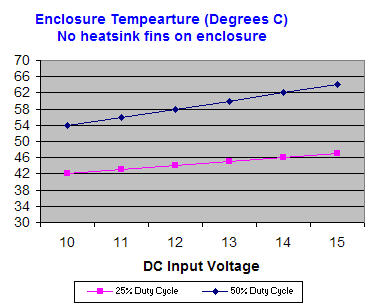
The temperature of the M7 enclusure must be kept below 60 degrees celcius, (140 farenheit) for proper operation of the unit.  For GPS transponder operation, there is no problem doing this, because the duty cycle is low.  But, if the M7 is used to send data, and is on the air a lare percentage of the time, then the enclusure’s temperature will begin to rise.  The following chart shows the case temperature at 25% and 50% Duty cycle. 

M7 Duty Cycle

 
M7 Duty Cycle

You can see in the chart, that the M7’s enclosure temperature gets hotter if the DC input voltage is higher, or if the duty cycle is higher.  

For example, if the DC input voltage is 10V, and the unit is operated at 25% transmit duty cycle, then the enclosure temperature would be about 42 degrees C.  Given the same duty cycle, the enclosure temperature would be 46 degrees if the DC input were to be 14 volts. 

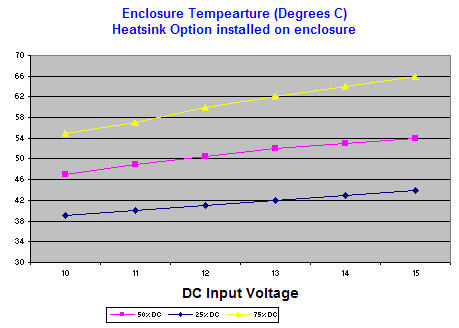
Raveon offers a heatsink option for the M7.  The heatsink is large finned heatsink that covers the top of the M7, and is secured on with thermally-conductive epoxy.  When this heatsink is attached, the M7 will stay cooler.  The following chart illustrates this:

 m7dutycycle-heatsink

The above data is the M7’s enslosure temperature with a heatsink secured to it.  The heatsink covers the top of the enclosure and uses normal air convection (no fan).  It reduces the case temperature by about 4-8 degrees.  

If a CPU cooling fan or similar fan were added instead, the case temperature rise would be only a few degrees above ambient.

Connecting the M7 to a Lowrance display

The M7 GX series of GPS transponders may be directly connected to a Lowrance Globalmap 540C or a Globalmap 840C navigation display. When connected, the Lowrance display map will show the location of the vehicle it is in PLUS the location of all other M7 transponders within radio range.  This unique feature allows one to quickly, easily, and inexpensively, make a mobile AVL system for tracking cars, trucks, racecars, construction equipment, or any thing Raveon’s M7 GX transponder may be installed on.

Both the 540C and 840C have built-in interfaces for a “NMEA 0183” devices, which is another way of saying that they can connect to other devices using a serial cable.   The NMEA 0183 is an RS232 serial connection that typically operates at 4800 baud.  It is used to exchange waypoint and other information between displays, GPS devices, and transponders.

When Raveon’s M7 GX transponder is connected to the Lowarnce diplay using the NMEA 0183 connection, the M7 transponder can put icons on the screen of the Lowrance display.  As the transponder received updated positions from other vehicles, it updates the position of the icons on the Lowrance display.

Lowrance 540C and 840C Wiring

From the Lowranace technical manual, here is how their NMEA 0183 interface works:

NMEA 0183 Cable Connections

NMEA 0183 is a standard communications format for marine electronic equipment. For example, an autopilot can connect to the NMEA interface on the GlobalMap 540c and receive positioning information.  The GlobalMap 540c can exchange information with any device that transmits or receives NMEA 0183 data. See the following diagram for general wiring connections. Read yourother product’s owner’s manual for more wiring information.

NMEA 0183 Wiring  (Data cable)

To exchange NMEA 0183 data, the GlobalMap 540c has one NMEA 0183 version 2.0 communication port. Com port one (Com-1) can be used to receive NMEA format GPS data. The com port can also transmit NMEA format GPS data to another device.  The four wires for the com port are combined with the Power Supply cable and NMEA 2000 Power cable to form the power/data cable (shown earlier). Com-1 uses the yellow wire to transmit, the orange wire to receive and the shield wire for signal ground. Your unit does not use the blue wire.540cwiring-to-m7

Wiring the DB9

The Lowrance’s “Data Cable” must be connected to the M7 transponder.  This connection will allow the M7 to put icons on the screen of the Lowrance display, showing the location of other tracked vehicles.  The Raveon M7 GPS transponder uses a 9-pin “DB9” connector to connect to the Lowrance.  Solder the Lowrance data cable wires onto a DB9 connector and plug the DB9 into the M7 transponder as shown below:db9-lowrance-31

The orange wire goes to pin two of the DB9, the yellow wire to pin 3, and the shield braid of he cable connects to pin 5 of the DB9.  The blue wire is trimmed off.

The extra wires on the Lowrance display called NMEA 2000 power are typically not used in a vehicle installation, and may be wrapped up with electrical tape and tucked away.

Configuring the Lowrance

Set the NMEA communication of the Lowrance to 4800 baud.

Configuring the M7 GX Transponder

Raveon has a designed the M7 GX transponder to work with Lowrance Display or any other NMEA 0183 display that can accept the “$GPWPL” NMEA message.   The $GPWPL is an industry standard message that the Lowrance displays and many other GPS displays interpret as a waypoint command.  The M7 GX outputs this $GPWPL message to put icons on the screen of the Lowarance, and to move the icons around on its screen.

To configure the M7 transponder to output the $GPWPL message, set the M7 GX to GPS mode 2.  To do this, put it into the configuration mode by send the +++ into the serial port.  The M7 will respond with an OK.  Type GPS 4 and press enter to put it into GPS 4 mode.  GPS 4 is the mode that causes the M7 GX to output $GPWPL messages whenever it receives a status/position message over the air.