A GPS tracking system for marinas, boat rentals, and other watercraft

Raveon’s asset tracking solutions gives customers the ability to focus on keeping up with their assets, instead of keeping up with monthly fees.  Using radio transmissions to broadcast received GPS messages, Raveon’s GPS transponders allow a marina operator to track all of their rental boats or other watercraft in real-time using a graphical display.  Competing GSM (cellular based) systems charge monthly data usage fees to transmit your GPS tracking information through their cellular telephone signal towers, and only function where you have cell phone service.

If you can’t make a cell phone call, likely, you can’t be tracked. Instead of getting the oars out when you lose cell service, the RavTrack real-time tracking system provides a complete standalone system.  No usage fees or third party infrastructure is necessary; instead RavTrack GPS transponders operate via VHF or UHF digital radio transmissions, providing you with instant status updates on every rental boat or other watercraft in your fleet.

Raveon’s easily configured and customizable GPS tracking system is designed to operate where and how you want it to operate, including a specialty line of weatherproof IP65 rated GPS transponders perfect for small watercraft such as jet-skis, kayaks, or the like.RTPC screen

On the boat, the Raveon GPS transponder simply requires access to the 12 volt (DC) power source, that’s likely already a part of your rental boat, an antenna for the radio, and an antenna for the GPS.  With available power saving modes, Raveon’s data radios will only draw a small fraction of power, meaning that it’s even suitable for a sailboat!

Raveon also offers compact design options suitable for jet skis (UHF systems suggested for Jet Skis for more compact sized antennas.)  Once your transponder is installed in your boat just turn it on and go.  The transponder will immediately begin searching for GPS lock and will begin broadcasting its location automatically at your chosen intervals.

The powerful GPS transponders broadcast position signals that can easily be received several miles over open water.  At your marina, truck, or your general base of operations, another transponder and antenna receives the incoming GPS reports from the boat or rental fleet. View the Port Asset Tracking infographic to learn more about how the RavTrack system is designed. For more information, learn how the Port of Long Beach partnered with Ravtrack for their tracking needs.

GPS Tracking Software

Raveon’s Windows based RavTrackPC program is available to provide you with a platform to view your assets (As seen in the image on the right.)  Customization integrated into RavTrackPC will provide your tracking system with the map you want to use.   You will be able to see the locations and IDs of each of your tracked boats out on the water on your map.  You can also configure RavTrackPC with rules and alerts so that if your boat starts moving at 2 AM or simply hasn’t reported in several minutes an alarm will be triggered.  Alarms can do anything from making a loud noise, to sending an email, tweet or SMS message, to triggering a third party program on your system through a command line interface.

RavTrackPC does far more than just tracking movement too, it can be used to track speed, duration and proximity to other tracked objects as well!  RavTrackPC provides Geo-Fence alerts, where you can create invisible borders to alert you when a boat is not where it’s supposed to be, or when it is heading back in to the marina or launch ramp.  This greatly facilitates dock service not to mention how much easier it is catch your daredevil kids/clients in the act of doing 40mph in a no-wake zone in your boat!  It also keeps the harbor master happy.  Furthermore, if the people in any of your rental craft have an issue, the optionally installed boat assistance switch can be triggered and help can be dispatched directly to the distressed boat’s location.

Displaying GPS Position

The RavTrack GPS transponder can also be set up to be displayed on many on-board GPS systems for boats or vehicles.  (Such as the Lowrance HDS-5 and Garmin 400 seen in the images on the left.)   This means that not only can you track your boat from the marina, it means that your boat or tow vehicle can also track yourboats!  No more awkwardly waiting around at the loading/unloading ramps!  You can watch your boat approach from anywhere, long before it’s in eyesight range.  This is also very useful for the private yacht operator in keeping track of tender boats or tracking recreational watercraft.  Not only is RavTrack great for keeping marina staff updated, the mobile tracking capabilities of RavTrack are ideal for use in your service or rescue craft.  Furthermore, if your rental boat has a compatible display, your marina dock location can appear on the display to guide the lost helmsman back home. display

Raveon’s GPS tracking solutions provide a service that’s simple to use as well as appropriate for an enjoyable boating experience while eliminating the stress of uncertainty.  Whether that means the peace of mind of knowing your customers whereabouts, or simply knowing your boat/fleet will be where you parked it last, Raveon’s stand alone, recurring-fee free, real time tracking will help improve your overall customer service, safety, and fleet maintenance.

Give us a call to discuss your particular operation and allow us to customize a GPS tracking solution tailored to what you need from your GPS tracking system, including system planning, custom radio configurations, or other special needs. If you have questions about the RavTrack GPS tracking system, we also offer an informative webinar.

GPS Tracking Service Comparison: RF versus Cellular

Common GPS vehicle tracking systems use “cellular” GSM/GPRS based transponders. Once the device calculates position from the GPS satellites the transponder transmits the position to the cellular GSM/GPRS network of receivers (cell towers) in the area.  At this point the GSM/GPRS system operator transports the data to your output device. Obviously the network operator charges a fee for this service, and is in control of your data as well.GPS Tracking Comparison: Radio Versus Cellular GSM/GPRS

Advantages of Radio-based Solutions

Radio-based solutions are different in that the radio transponders transmit position over a mobile radio frequency, typically designated by a government administrative agency for your exclusive use.  A GSM/GPRS system is not used; instead the operator of the radio system installs one or more receivers in position(s) around the area to be tracked. One receiver – or more exact: the connected RF antenna – is capable of covering an area of typically 10-25 mile radius from its own position, although this range might vary depending upon how high in elevation the receiving antenna is, and what the local terrain is like.

As the radio operator owns both the GPS position transmitters as well as the receiver(s), the fleet may transmit positions very frequently without concern for any fees, and with extremely fast delivery of data; allowing for true real-time position updates which common cellular solutions do not provide (or charge high fees for).

Often radio users install just one receiver, and mount it high atop a building, antenna tower, or point of elevation to cover the tracking area. This area might be a city, an open pit mine or other remote area, or a fleet of boats where the group can be tracked by other boats in the fleet. Since the entire system operates independently from any GSM/GPRS network, radio modems can work anywhere GPS satellite lock can be acquired.  In fact, the entire system can be mobile and – in case of Raveon’s M7-GX series radios – any fleet member can receive GPS reports from other fleet members in radio range, even while all are moving at high speeds.

Large Area Coverage

If a larger area of coverage is needed, or the tracking headquarters is not at a good location for area reception, a single radio repeater may be established at a preferred location where the repeater then wirelessly relays the transmissions it receives to the central tracking location. If the area of coverage is very large, then multiple receivers may be installed and connected together as well as to a central location via an IP backbone, which can include either a private network or the public internet.  The determination of the proper receiver layout is based principally upon the area the system must cover for effective fleet tracking, as well as the local terrain.

Primarily the decision to install a radio-based tracking solution versus a common cellular system comes down to the area of tracking coverage required and the size of the fleet involved. Even the area of coverage required is vast, requiring a large number of receivers, and the fleet itself is small, and the cost per vehicle may become prohibitive.  In these cases the operator must rely on a pre-installed network of GSM/GPRS system receivers owned and operated by another entity and pay their monthly fees. If GSM/GPRS service coverage is poor then an expensive communications satellite relay may be a considered alternative.

See this complete comparison of RF versus GSM/GPRS “cellular” vehicle tracking systems.

For more information about the RavTrack system:

  • Attend our webinar where we introduce the technology and provide an overview of the system.
  • View a list of some of our Customers. We partner with many diverse companies and government agencies.
  • Learn more about how the RavTrack system is designed by viewing the asset tracking infographic.

Driver Fatigue Management

Spectrum Fatigue, a South Africa based company focused on the mining industry and the distributor of both the Raveon RavTrack real-time GPS tracking system and the new HaoNai Industrial MR688 Driver Fatigue Monitor in South Africa, has successfully integrated the MR688 with Raveon’s  RV-M7 “GX” series wireless GPS/data transponder for its driver fatigue management solution.

The MR688 monitors the driver’s eyes for abnormal closure, indicating the driver may be overly fatigued, and sets an alarm condition accordingly.  The integration, using the digital output from the MR688 connected to the related digital input on the Raveon real-time GPS transponder, allows the transponder to transmit every Alarm/Siren from the MR688 to the mine site remote control room environment, along with precise position information, and immediately pinpoints the vehicle of concern on an operational map of the site.

The control room, uses Raveon’s  RavTrack PC software package to track the mine vehicles in real time, and to capture and alert control room staff of any driver fatigue issues with both visual and audible alerts, and historically logs the event. The RavTrack PC software can also issue an email, text message, or tweet, for alarm notifications to off-site personnel.  The Spectrum Fatigue integration of the MR688 fatigue monitor, together with the advanced features of the RavTrack system,  offers a complete fatigue monitoring and vehicle tracking solution to any Opencast Mining operation.  The system is in operation in a leading South African mine today, and more sites will be implementing the solution soon. Learn more about how the RavTrack mining asset tracking system is organized by viewing the mine tracking infographic.

Driver Fatigue has been identified as a major cause of accidents and  incidents at Opencast Mining operations, and the Spectrum Fatigue solution greatly improves operational safety and efficiency.  According to the owner of Spectrum Fatigue, Pieter Jacobs;  “The implementation of both the MR688 and RV-M7 transponder in a mining truck,  offers our customers the best solution to actively monitor driver activity and fatigue related alarms”.

For more information on this fatigue monitoring and tracking solution email Pieter Jacobs or visit the company website. We also offer a regular webinar where we introduce the RavTrack tracking systems.

driver fatigue management

Restricting client views of tracked objects in RavTrack PC

When using RavTrack PC for multiple clients or departments it may be convenient to restrict the ability of a particular client to track or view only specific assets.  For instance if you are tracking police, fire, and public works vehicles you may want supervisors from each of those individual departments to see only the vehicles within their department.

Currently RavTrack PC allows you to set the viewing privileges on a WorkStation by a WorkStation basis.  In the future we anticipate a version of RavTrack PC will allow you to set these privileges on a user by user basis.

To set a WorkStation client priveleges there are essentially three basic tasks involved.

First, create specific groups of vehicles and add the pertinent vehicles to the proper group.

Second, set the WorkStation capabilities to view just the specific group appropriate for that WorkStation.

Third and most importantly fix the user capabilities for the WorkStation so that a particular user cannot override the settings.

Here are the detailed steps involved for each task.  Perform these as an administrator user.

Create groups and assign vehicles to particular groups.  In RavTrackPC there is a default group named “everyone” where all vehicles or tracked assets are automatically assigned as members of the group.  You may assign vehicles or other tracked objects to another group of your choice.  These objects will all remain as members of  the everyone group as well, but any specific object or vehicle cannot be a member of more than one additional specified group.  Plan your groups accordingly.

If the group you want does not already exist, from the main menu bar in RavTrack PC choose file . program properties . program operations tab . click on the button “add a user group” naming it however you prefer.  Save and exit program properties.

image.

To add a a vehicle to your group, first find the vehicle you want to add to the group in the database window on the left hand side of the main screen.  If you can’t find the vehicle ensure you have selected “everyone” and no filters are used.   Double click the vehicle name and the Edit Object Properties window will appear.  The vehicle name should already be in the appropriate box, simply pull down the group name (immediately below) and add the vehicle. (Hint: To add a lot of vehicles you can scroll through a series of IDs on the left side). Save and Exit the window.

image

Restrict the workstations’ view to a particular group. From the main menu bar in RavTrack PC choose “User Groups”.  The list will show all available groups.  Simply check the group(s) you want to allow to be viewed.  Ensure the group “Everyone” is not checked.

Fixing a users abilities so they cannot override the settings.  You must ensure that each user has a login on only the appropriate workstations, and that they are forced to log in  User logins may be shared amongst your users at your option.  Ensure the user login privileges are restricted as appropriate for their status.  From the main menu bar in RavTrack PC choose file . program properties . Users and Login tab . Create a user name and password, check the “Require user to login upon program start” box, and check the appropriate privilege boxes for the users’ status within your organization.  In the example below the user can only acknowledge alert and run reports.

image

You are finished.  Should you have any questions, or suggestions for future enhancements, please feel free to contact us, and thank you for being a RavTrack user!

Antenna Tuning or Cutting

Antenna Tuning or Cutting


Selecting and installing a proper antenna for a telemetry radio, GPS transponder, or base station involves selecting a suitable style of antenna for your installation, properly mounting the antenna, cabling the antenna to the radio connection, and possibly adding a lightning arrestor to the antenna cable.  One of the most important considerations is ensuring you select an antenna that works well for your operating frequency.  In many cases this involves tuning the antenna for the proper frequency.

Any antenna is constructed of a metal conducting element.  Often this element is insulated from direct contact with a rubber or fiberglass sheath, or some other material and you will not see the metal element itself.   In any good antenna the shape and length of the element was carefully considered when the antenna was designed.  Some elements are simple straight thin metal rods, others are coils, loops or other styles or combinations.  Frequently the antenna is built to work at a very specific frequency or range of frequencies, such as 450-460MHz.  If you select an antenna built for the wrong frequency you will have very poor results.

Some common antennas allow for the user to adjust the antenna for their frequency.  The antenna may be built to cover a wide range of frequencies, such as 400-500MHz, but should be adjusted to the precise user frequency.  As radio transmissions are actually radio “waves” you may remember that a radio frequency and radio wavelength are tightly related.  Tuning an antenna typically involves adjusting the length of the conducting element(s) to be a specific ratio of the actual radio wavelength.

Often field tunable antennas involve 2 elements that are allowed to slide or telescope back and forth to achieve a specific antenna length.  In other cases the element(s) may need to be physically cut or altered to a specific length.   In the case of a common omni-directional fiberglass antenna the metal element(s) are housed within a fiberglass insulative sheath, and must be removed from the sheath to gain access.  Here the user must expose the metal conductive element(s) and cut them to the proper length.  If the antenna has multiple elements , each element may require a different cut and re-assembly must place them in proper order.

To physically cut the element(s) a good metal file, Dremel tool, or fine tooth metal saw may be used to cut the element(s), or score and snap them carefully.  Once done the element(s) go back into the fiberglass sheath in correct order.  You can smooth any sharp points first if you like.

 If an antenna is meant to be tunable it will come with a chart or other instructions as to what length is intended for a specific frequency, and perhaps instructions on how to physically perform the cut or adjustment.  If  you intend to cut-to-tune your antenna remember these 5 key points:

  • Never cut an antenna unless you are certain you need to do so.
  • Make sure you have clear instructions on how to measure and cut the antenna for your frequency, and measure very carefully.
  • If the antenna contains multiple elements, plan and track each element with individual care.
  • Wear eye protection and follow any safety procedures.
  • Never cut the element too short.  It may be better to take it increments at a time to achieve proper length.

If you order an antenna from us that requires cutting, we are happy to do this for you prior to shipping if you can tell us the precise frequency you need.

The RavTrack Atlas PL personal GPS locator radio network capabilities

The RavTrack Atlas PL personal GPS locator radio network capabilities

Most people will identify the Atlas PL personal locator as an excellent device for people to wear and to send GPS position information, alerts, and man-down status.  Typically the Atlas PL is used in conjunction with the RavTrack AVL GPS vehicle transponders which are equipped in fleet vehicles and used for base receiving stations as well as store-and-forward repeaters.  It is common for these latter transponders to be used to complete a GPS tracking radio network for tracking both personnel, and vehicles, or other costly assets.

However, it is also possible for the Atlas PL units alone to be used to construct a GPS tracking network complete with multiple base stations and/or a repeater, without the involvement of the vehicle transponder models in the system.  The Atlas PL inherently has all the capabilities of the vehicle based models.  Releasing these capabilities is simply a matter of following correct configuration procedures for the Atlas PL.

The following diagram demonstrates the use of the Atlas PL in its traditional role as a personal GPS transponder but also as multiple base stations, with one base station also serving as a repeater.

Within each box are typical settings of the Atlas PL as part of the GPS tracking scheme.  Above each box are the intended uses of each Atlas PL in the tracking network, while below each box are a series of configuration commands the user should issue to each Atlas PL unit to configure each unit for the particular use specified.  Finally, alongside each command is an indication of what that command actually configures in the Atlas PL.

Each Atlas PL starts out in GPS mode 8.  This configures the Atlas PL to function in the most common transponder configuration and enables the advanced battery management functions of the Atlas PL as well.  However, it is important to note that the command GPS – such as GPS 8 – is a macro command which configures many different aspects of the unit.  Most commonly the GPS command is understood by the user to set the format of the NMEA output, but it in fact does much more.  For instance, issuing  the command “GPS 8” to an Atlas PL will completely turn off the receiver circuitry of the unit. This is not what we need for a base station receiver or repeater.  The subsequent commands change other configurable attributes of the Atlas PL, overriding the macro set of configuration parameters, to arrive at the final desired configuration.  It is critical these configuration commands be issued after the GPS command.

We hope this demonstrates some of the capabilities of the Atlas PL not commonly identified by the end user.  Should you have in mind a specific function of an Atlas PL that is not apparent, we encourage you to contact us.

Fast GPS reporting with TDMA timeslots

Fast GPS reporting with TDMA timeslots

RavTrack is very fast at reporting the positions of even large fleets over a single radio channel because each RavTrack transponder is assigned a specific time slot in which to transmit, avoiding interference which may occur if multiple devices were permitted to transmit simultaneously. The fact that all transponders share a “common clock” via the GPS satellite signals allows us to assign a unique timeslot to each device, yet maintain timing coordination over a large fleet of devices.

RavTrack timeslots are built on 50 millisecond increments by factory default, athough 10msec granularity can be achieved with newer firmware versions. For the purposes of illustration we will assume each time slot must be a multiple of 50msec. The specific size of your time slot is typically determined by the bandwidth/transmission rate of your particular transponder and the presence or absence of a repeater.

Most FCC licenses granted in the USA are for narrowband (12.5KHz) channel spacing. The associated RavTrack transponders operate quite well at 4800 baud transmission rate (factory default), although slower rates can be used. These transponders can complete a position report transmission in about 64msec, so a 100msec timeslot would be the factory default when no repeater is in the system. If your license permits wideband (25KHz) channel spacing, and your transponders are capable of wideband operation, the factory default transmission rate is 9600 baud. In this instance a position transmission can be completed in about 32msec, so a 50msec timeslot is typically used when no repeater is in the system.

If your system uses a store-and-forward repeater you need to make each timeslot longer so that once a vehicle reports, the repeater has sufficient time to receive, process, and repeat the transmission on “quiet air” before the next vehicle transmission occurs. In a 9600 baud system a 100msec timeslot may be used if you are not encrypting your transmissions, but with encryption a 150msec time slot should be used, as the repeater needs a bit more time to process an encrypted message than an unencrypted message. In a 4800 baud system using a repeater a 200msec timeslot may be used whether or not you are encrypting the position transmissions.

Timeslots are numbered starting at zero, and the zero time slot is reserved by the system. Thus you can start numbering your transponder time slots at slot 1 (0001). In a system using 100msec timeslots the first second is completed once time slots 0 through 9 are used (10 time slots total). For this reason, up to 9 vehicle transmissions can be completed in the first second, and in this example your fleet size would be limited to a total of 9 vehicles if you need the entire fleet to report each second. As the reserved zero time slot only occurs at the start of any particular TDMA cycle, cycles longer than 1 second would allow the addition of 10 more time 100msec slots for each second added to the cycle. Thus a fleet using 100msec time slots can provide reports from 19 vehicles every 2 seconds, 29 vehicles every 3 seconds, and so forth. Similar logic applies to other RavTrack timing schemes.

If your fleet is quite large and you want faster updates than the 100msec timeslot scheme allows, you can double your fleet size if local regulations allow you to use wideband transmissions that yield a 50msec time slot.  In many deployemnets a fleet can scale much larger and still preserve fast report cycles simply by using multiple frequencies.  As transponders on different frequencies will not interfere with one another even if transmitting simultaneously, a properly architected system using five frequencies can report five times faster than the same system using only one frequency.

When setting up your fleet timing it is a good idea to leave a little extra capacity in your timing scheme to allow the easy addition of new vehicles to the fleet.

Finally, if you want to use the RavTrack transponders to transmit not only position data, but extra data as well (e.g. from an on-board telemetry device), you will need longer time slots to send this extra data. Please contact us in this regard, and we are happy to help you in architecting a solid system.

For a more technical programming perspective on TDMA time slots as used by RavTrack see the following articles: http://ravtrack.com/GPStracking/tdma-transmission-overview/361/  

http://ravtrack.com/GPStracking/tdma-time-slots/71/ 

or consult your technical manual.

RavTrack PC Map Creation step-by-step

Creating a Map for RavTrack PC


Creating a map to be utilized by RavTrack PC can be completed in just a few steps.  We like to use a powerful mapping program called Global Mapper for development of our maps, however, there are several free programs and websites on the internet that allow you to obtain map images.  For this example, we use a program called Google Map Buddy that was downloaded from CNET.COM.  This blog provides  a short summary of how to obtain a map image, calibrate it with the Ravtrack Software, and then use it with Ravtrack.


                This process will include a quick overview of the program Google Map Buddy.  After which, we will take the image we have obtained and use Ravtrack PC to calibrate the image.  You will need to have Google Earth or a similar program in order to obtain coordinates of your calibration area. 

With Google maps open we begin by opening up Google map buddy:


Enter the exact address of where you want your map centered:


For this example we are centered at the City of Borger Texas:

Select the area that you want the Map to encompass and the zoom level.  Zoom levels go from 1 (low detail) to 19 (high detail) and will increase the file size of your image.   Decide on the level of detail you need and select it from the drop down box.


Click create map and choose a file name:


Google Map Buddy has the option of outputting the image as an aerial satellite view, road (street) map, terrain (Topo) map, or hybrid map.  Select the appropriate option and click OK:


Google Map Buddy will download the image and ask you if you would like to delete the tiles it has downloaded, select yes.


Your image is now created:

The image will be in a PNG file format and will have to now be calibrated to properly represent the latitude and longitude of the points on the map.


Open up Ravtrack PC and select  TOOLS > MAP CREATION TOOL:


Now you will have to open the map PNG image that you created with Google Map Buddy. To do this click MAP > NEW MAP:


The map creation tool will ask you a few questions about the settings. Click OK to the defaults:


Select the images country, Grid, and Datum. The settings illustrated below are correct for the City of Borger .  Click NEXT and proceed:


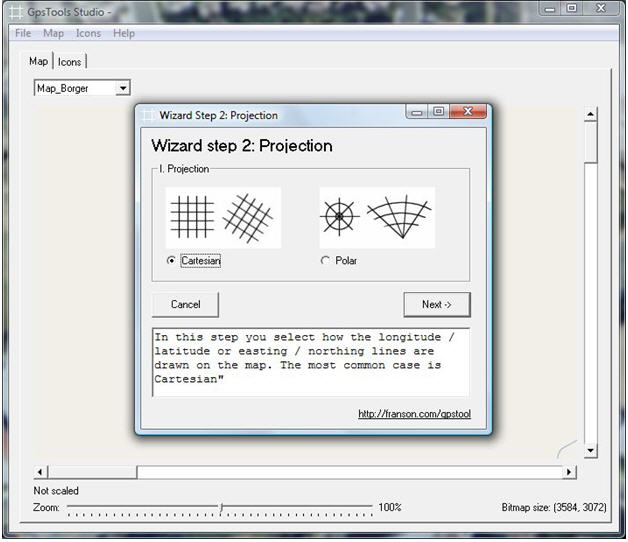
Select the projection. For smaller images (typically less than 100 miles across) such as the city of Borger, we will use Cartesian. For large land masses, polar would have to be used.  Click NEXT:

Your image will now require the lat/long calibration mentioned earlier.


The tool will ask you to click on a known coordinate (a clear point on the map, such as a road intersection or natural feature).  Before you do this you must be prepared with the precise latitude and longitude of the coordinate you will select:


If you don’t know the lat/long of your coordinate open Google earth and select your location. You will use Google Earth in order to obtain coordinates of 3 points. You will want to choose points towards the periphery of your image. For example, if you have a map of a city, you may select points towards the far upper left, bottom center, and upper right.


Align the map creation tool and Google Earth images side by side, and visually identify an initial coordinate point on each map. This will start the calibration. The calibration consists of finding points on Google earth that correspond to your image’s point on the map. Once you have found that exact map point, copy down the coordinates that are located at the bottom of the Google earth screen.  In the RavTrack PC  screen (the left side screen on the example below) you can now click on the exact location your coordinates correspond to:


The Scaling wizard will come up next. Now you can enter your coordinates. Ensure your coordinates are correct with the proper heading (West, East, North, and south). Click next to finish calibration of this point:

Repeat this step for two more coordinate points and you will receive a scaling complete message. After calibration, save your resulting MAPLIB file to your Ravtrack map directory.  Now you can load your map and use it with Ravtrack!


Here’s a quick list of free programs and websites:

http://download.cnet.com/Google-Map-Buddy/3000-20426_4-10962144.html

http://www.google.com/mapmaker


There are many programs and sites that will give you a map image that can be used for calibration.


Examples of events triggering fast reporting

The standard M7-GX GPS tracking transponder has 2 separate reporting rates, the TXRATE and the IDLERATE.   In many deployments the TXRATE and IDLERATE are identical.  However, in some deployments the IDLERATE is set to transmit position less frequently than the TXRATE unless a specified event occurs.

Some of these events include:

Speed of travel greater than a user specified value (TRIGSPEED parameter)

Distance of travel greater than a user specified value (TRIGDX parameter)

Proximity to another GX transponder less than a user specified value (PROX parameter).

Here are three examples of using this flexibility in your system.

Example – Using TRIGSPEED

Picture a police squad car sitting idle or cruising slowly through a neighborhood on patrol.  In this instance it may not be important for the vehicle to transmit a position report more frequently than every 2 minutes.  If this is the case IDLERATE can be set for 120 (seconds).  However, the same squad car may later be move at higher speeds and reporting more frequently becomes important .  In our example the system administrator has set the fastest reporting frequency at 10 seconds (TXRATE 10).    When the car speed exceeds a certain threshold, let’s say 40kph (TRIGSPEED 40) the TXRATE is invoked and reports are now sent every 10 seconds.  When the car slows down, the IDLERATE again takes over, and transmissions are less frequent.

Example – Using TRIGDX

Your public works department has a number of vehicles out every day serving the community.  A vehicle and crew may stop for a while and work at a particular site.   While at the site they may even move the vehicle around a bit, to aid in the work.  While on the site a position report rate frequency of 5 minute intervals is perfectly adequate.  However, when they pick up and start moving to a new site, you’d like to be able to track their progress and know where they are more frequently, once they’ve moved 100 feet or so.  In this case your maximum system reporting frequency is twice a minute , or TXRATE 30 (seconds)   Set IDLERATE 300 (seconds), and TRIGDX 30 (meters).  30 meters is roughly 100 feet.

Example-Using PROX

You drive aheavy equipment in an open pit mine, or on a construction site.  The visibililty from your cab isn’t all that great, and you drive and operate your equipment as carefully as possible at all times.  In a move to further improve safety your company has placed a tracking display in your vehicle, allowing you to display the location of all of your other RavTrack transponders within radio range.  Your system administrator has set the following parameters in all of your transponders:

IDLRATE 10 (seconds)

TXRATE 2 (seconds)

PROX 15 (meters)

During your normal activities the display in your vehicle updates the location of all other transponders every 10 seconds.  Somewhere along the line, one of your coworkers, while on foot, comes close to your equipment.  Your co-worker  (Jim) is wearing on his belt the ATLAS PL personal locator.  When he gets within 50 feet of you (about 15 meters) your transponder, which was transmitting at 10 second intervals, starts  transmitting positions ever 2 seconds – and so does his ATLAS PL unit.  Now the blip on your display that represents your Jim starts pulsing every 2 seconds, perhaps a light has also lit on your dashboard, or a buzzer sounds in your cab, alerting you to Jim’s nearby presence.

We will cover the integration of warning lights and buzzers in another tech blog.

For the more technically minded, here is the logic flow chart the GPS transponder tests internally every TXRATE.

TXRATE logic flowchart

Multiple Base Receivers vs Repeaters in a RavTrack System

Often times deploying one base receiver with a highly mounted omni-directional antenna will provide adequate coverage for a RavTrack vehicle tracking station. .  However, in some circumstances, especially as the area of operation increases in size, this is not sufficient to cover the entire tracked area. Additionally other factors may compel you to install multiple base receivers, or one or two system repeaters, with antennas located at distributed points around your tracked area..

First, before you determine that one base receiver location is not sufficient, consider your area for tracking.  RavTrack radio coverage can roughly be compared to a 5 watt  UHF or VHF radio system.  The Ravtrack system coverage is typically similar to the voice system coverage within the same frequency band, although not necessarily identical.

Working from your primary base station try mounting the base station antenna as high as possible to cover the desired territory.  In some cases this may mean moving the antenna away from the control room to achieve the best coverage.  A skilled RF technician familiar with your area can probably determine a good antenna location, sometimes by performing a site survey, or simply by experience.

Be careful to minimize the length of antenna cable that links the antenna to the receiving modem, and by all means avoid looping or coiling the cable.  To do this may cause you to relocated the receiving modem from nearby the tracking PC.  RS232 serial communication links have strict distance limitations.  However, if you can  use Ethernet/IP communications between the base modem and the computer then you can use a ‘terminal server’ (AKA telnet server, serial-IP convertor) and install the base receiving modem onto the Ethernet/IP backbone.  In this configuration the GPS messages received by the base station are carried across the network from the base receiving modem to the tracking PC as a telnet type of IP service..

Using an IP backbone is a common approach in distributing several base receiving stations around your area to provide thorough radio coverage of the area in question..  You will need an Ethernet/IP backbone with points of presence at all base receiving sites to collectively link all these to your tracking PC.  It is best to check with your I.T. department and allow them to use certain network hardware that they prefer.  Please note that the Ethernet/IP backbone does not necessarily need to be wired (copper or fiber) as a wireless backbone may be suitable as well.  There are a number of topologies available.

Ensure your tracking software can acquire the telnet traffic when using this approach, and in some cases, if the PC cannot ascribe to the telnet service directly you may use another telnet server at the PC location to interface with the IP backbone and reconvert the GPS messages back to their original serial output state. Also ensure that you can ascribe to multiple message feeds as you will have a message feed coming from each base receiver station.  Raveon’s RavTrack PC tracking software supports up to 6 base station modems either through direct connections or telnet, and nearly unlimited base receiver connections by utilizing the Raveon CiGorn gateway.

For much more detail on using terminal servers see application note 140 “Using an Terminal Server to expand your Ccverage area” at the following link.

http://ravtrack.com/pdf_appnotes/AN140(RavTrackTermServ).pdf

If this approach is not practical, which can especially be the case if no IP backbone is available,  you may consider using, one or more repeaters..  For a RavTrack system, the same model of transponder that you use in your vehicles, or as a base station, can readly be programmed as a store-and-forward repeater.  As a repeater may transmit a lot, the only physical alternation you may need to make as a transponder is to increase the cooling efficiency of the transponder perhaps by adding a heat sink or CPU cooling fan atop the case. Remember that a system repeater, just as a base receiver, will need power, and repeaters will draw more power than receivers as they transmit quite frequenctly.  Try to optimize the height of the antenna above the ground in considering repeater locations.  For more information on antennas see the following tech blog “Antennas for a RavTrack vehicle tracking system”:

http://ravtrack.com/GPStracking/2009/antennas-for-a-ravtrack-vehicle-tracking-system/

A RavTrack system repeater will repeat all the GPS messages it receives back out, to be received elsewhere within its area of coverage, so you will always need at least one transponder configured as a base receiver.  It is possible to configure a transponder to simultaneously act as a receiver and repeater.  This is sometimes done to support a second tracking computer  physically located away from a primary computer.   Remember as well that in- vehicle transponders will transmit their own position information will receiving similar information from from other fleet members within radio range, a feature fairly unique to RavTrack.  If you will install tracking displays inside your vehicles to take advantage of this feature, the vehicle-to-vehicle tracking range will benefit from a system repeater even if only one base receiver is used, so you may with to configure your receiver as a repeater as well.

Please consider that a store-and-forward repeater first receives GPS messages very briefly and then repeats out that same transmission.  So any RavTrack repeater will take time to receive then repeat.  Because of this the total duration of a transmission should be extended by lengthening the duration of each transmission slot in the system, which reserves TDMA system time for each repeated message.   System timing parameters and overall system performance should be considered.  Deploying multiple repeaters can further impact system-wide timing, so be judicious in their deployment.   For more information on system timing with and without repeaters please refer to the tech blog  “TDMA Time Slots”:

http://ravtrack.com/GPStracking/2009/tdma-time-slots/

If you believe your scenario will require you to install either multiple base receiver stations or one or more system repeaters we encourage you to contact us so we can help you work towards the best approach for your particular system.