Use Global Mapper 12 to Create a RavTrack Map
The purpose of this tech blog entry is to guide a RavTrack PC user in acquiring a usable Geotiff Map File from Global Mapper 12. This Geotiff can be converted to .Maplib format and displayed on RavTrack PC. Please note that earlier versions of Global Mapper, including version 10.02 and 11.00, can be utilized for the same operation, however, some specific WMS data sources are not built in.
Global Mapper 12 is a powerful mapping software that allows access to high resolution geospatial imagery which can be downloaded, edited, and extracted. We are going to focus on the downloading and extracting aspect of the software. Most RavTrack users have applications that require the use of street, satellite (Aerial), topographic, and similar maps. Obtaining these maps can become somewhat difficult; however, with software packages such as Global Mapper, you can easily obtain a usable Geotiff that can be displayed on RavTrack PC.
To accomplish this please follow these steps:
1. Start up Global Mapper 12.

Ensure you have the registered version. The trial version may limit your ability to extract the geotiff map image.
2. Select (Download free maps/imagery)

Select the type of map you wish to use. Common maps include openstreetmap.org and NAIP Color Imagery. Enter the area location details in the (Select download area) section. The amount of area selected is proportional to download time, larger areas will take longer to process and download.
3. Configure Projection

After your map image has loaded on the screen, select (Configure) under the tools menu.
4. Set the Projection Parameters.

- Select (UTM) and the (Zone) for your map’s area. There are many reference maps online which outline the UTM Zones. For our example we are using UTM projection in Zone 11. After you have selected UTM and your Zone, click (OK). Your map is now in the correct projection.
5. Select (Export Raster/Image Format) in the file menu.

Your Map is now ready to export. Ensure you have selected the area you wish to cover.
6. Select Geotiff as your export format.

7. Set Export Options

This is where you can adjust the map image you are exporting. For our example we are going to focus on the (Sample Spacing/Scale) and (World File) option. The scaling option allows you to control you resolution. If you wish to have a high resolution map (More Detail and lower elevation) decrease these values, for lower resolution and a smaller map file, increase these values. Ensure you select (Create TFW (World File)). Once this is done, click OK.
8. Start RavTrack PC and select Map Creation Tool

After the Geotiff export is complete, open RavTrack PC. Select (Map Creation Tool) in the tools menu. We will now begin to convert the Geotiff to a usable RavTrack Image (.MapLib format).
9. Select New Map

This is the map creation software that will convert the geotiff to .maplib.
10. Select the Geotiff Image

Find the directory of the Geotiff image and select the .tif image that exported by Global Mapper. Once selected click OK and the geotiff will be loaded into the map creation tool.
11. Select OK to the Default Settings.

Click OK to the default settings here and select OK.
12. Click Yes to World File

The map creation tool will ask you wif you would like to use the world file you selected in Global Mapper. Click Yes.
13. Select Grid

This section is vital, incorrect values will cause the map image to display incorrect coordinates. Enter your (Region), (Grid), and (Zone). For our example we are located in the United States, using UTM North, and in Zone 11. Once complete, click next.
14.Verify Coordinates

You have completed the conversion process. Click anywhere on the map and the coordinates of that location will display on the lower left hand side. You can verify these coordinates by referencing them with known locations from an alternate source such as Google Earth.
15. Save your Map

Select save MapLib as under the file menu.
16. Locate your RavTrack Map Directory.

Locate your RavTrack PC map directory. You can find the specific location of this folder by selecting ABOUT RAVTRACK under the RavTrack PC help menu. Save your .MapLib.
17. Open Program Properties

Open Program Properties located under the file menu in RavTrack PC. Your Map will be located on the lower right hand side. Select your Map file and click save and exit.
18. Success!
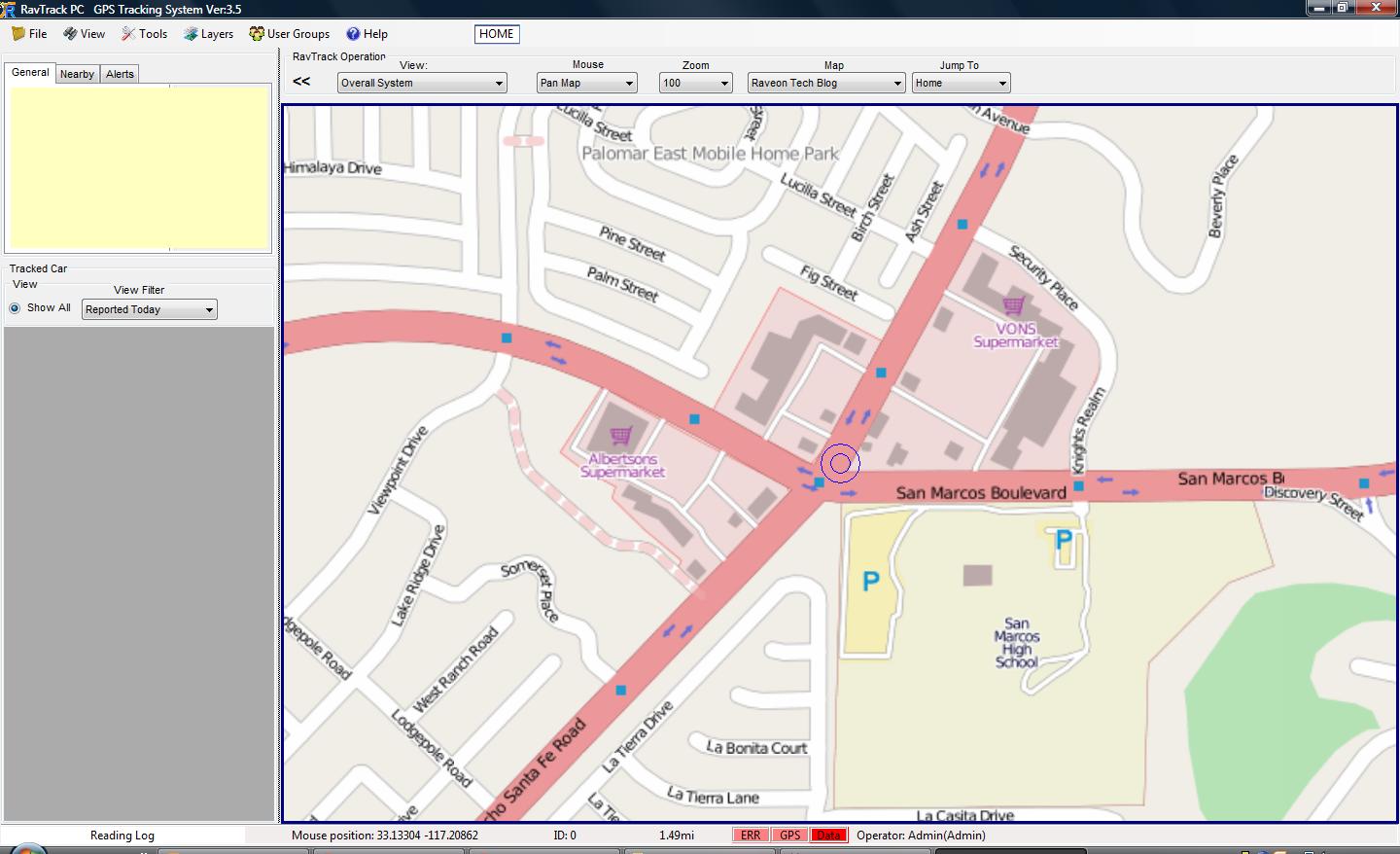
You have successfully converted a Geotiff to .Maplib. If your map does not show on the screen immediately, select VIEW>GO TO MAP. Your map will display and you can now use it with RavTrack PC.