
Overview
This Technical Brief describes how to upload firmware into the RV-M7 transceiver. The RV-M7 series transceivers utilize a Phillips ARM-based Microprocessor with internal FLASH memory.
All RV-M7-GX series transceiver use an LPC2136 processor, which has 256kB of flash memory.
Phillips Semiconductor provides a utility to upload firmware into the microprocessor. Their program is called “LPC2000 Flash Utility” This utility may be used in the field to upload new firmware into the RV-M7 series transceivers.
Procedure
1.0 Uploading Firmware
1. Extract the .zip files if the firmware update was supplied in .zip format.
2. Open the Philips Flash Utility Installation.exe file inside the LPC21xx folder. The version must be V2.2.3 or higher. Version 2.2.3 is available <here>. Walk through the installation steps to install the Philips Flash Utility program. The Utility program should open when the installation is complete. The Utility program window is shown below.

3. Select the appropriate COM port from the Connected To Port pull-down menu.
4. Set the baud rate to 19200 from the Use Baud Rate pull-down menu.
5. Set the XTAL Freq (kHz) to 20000.
6. Select the appropriate file to upload to the modem. The file name will end in a .hex extension.
7. Remove the four Phillips panhead screws securing the modem’s rear panel to the housing. You don’t need to disconnect the SMA GPS cable from the rear panel.
8. Carefully remove the rear panel from the modem housing. The internal SMA GPS cable has a 2” service loop to allow access to the modem’s CONFIG button. The CONFIG button location is shown below.
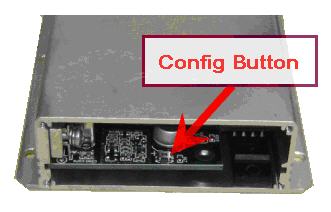
9. Set a DC power supply for +12VDC. Set the power supply output OFF.
10. Connect the PC serial port to the modem’s DB9 front panel connector.
11. Connect the modem’s green 2-pin power connector to the power supply.
12. Press and hold the modem CONFIG button. Set the power supply output to ON, wait approximately 2 seconds, and release the CONFIG button. If these steps were performed correctly the modem’s current draw should be approximately 30mA.
13. Press the Read Device ID button on the Philips Utility program window to establish communication with the modem. A reset message saying “Please reset your LPC2000 board now and then press OK!” will appear. DO NOT RESET POWER TO THE MODEM. Press the OK button. A “Read Part ID Successfully” message will appear in the lower left corner of the Flash Utility program window.
Note: When the Read Device ID button is pressed the Utility program may display a “Cannot communicate with test board!” message. Disregard this message. Press the OK button and press the Read Device ID button again to establish communications with the modem.
14. Press the Upload to Flash button on the Philips Utility program window to upload the 2F700GXB5.hex file to the modem’s flash memory. The Utility program will display a “File Upload Successfully Completed” in the lower left corner when the file upload is completed.
15. Repeat steps 7 through 14 for any additional units.
2.0 Configuring the Modem
1. Close the Philips Flash Utility program.
2. Open a terminal program with port settings of 8 data bits, no parity, 1 stop bit, and flow control off. The bps setting will depend on the previous modem configuration of the ATBD setting. For modem ID: 0001 and 0002 set the bps setting to 38400 and for modem ID: 0003 set the bps setting to 4800.
3. Set a DC power supply for +12VDC.
4. Connect the PC serial port to the modem’s DB9 front panel connector.
5. Connect the modem’s green 2-pin power connector to the power supply.
6. Type “+++” on the terminal program to enter the modem’s configuration mode.
7. Configure the product per the user manual.
Upgrading to version B10 Firmware
Version B10 introduced a number of new features and parameters in the M7 radio. Because these new features have parameters stored in EEPROM, the new features must be manually initialized on radios that have a previous version of the firmware. Any radio with a current firmware version less than B10, must have the following commands executed. If the firmware in the radio is already B10 or higher, you will not need to do the following commands.
Once the version B10 (or higher) firmware has been loaded into the radio, execute the following commands:
Set the radio back to factory defaults
AT&F <enter>
Set the group code to 0
ATGP 0 <enter>
Set the charge pump current
CPUMP 13<enter>
Set the channel frequency
ATFX xxx.xxxx<enter> All previously stored frequencies were probably erased with B10
Recalibrate RSSI
AT$A 340<enter> The A/D reading at -100dBm
AT$B 530<enter> The A/D reading at -70dBm
If the radio is a –GX version (GPS )
GPS&F<enter>
GPS X <enter> where X is the desired GPS mode of operation
SLOTQTY 1<enter> Set the number of tdma slots to 1 .
Re-calibrate RF power output calibration
AT$P xx <enter> adjust XX value so that the RF power output is correct. Use a wattmeter connected to the M7 to read the power. Monitor the current craw, and ensure it does not exceed 2.8A.
AT$R -10 PA temperature compensation.
Upgrading to Version B24 Firmware
Since B10, a number of new features and parameters in the M7 radio. Because these new features have parameters stored in EEPROM, the new features need to be initialized before the radio will work. Normally, this is done at the factory, but it you are upgrading the firmware in the field, you should execute the following commands after you have uploaded B24 into your radio.
Your MUST execute the following commands, based upon the firmware version you were upgrading from.
FREEWHEEL 120 (Only if your radio has a GPS and is a –GX version)
TDMADATA 0 (Only if your radio has a GPS and is a –GX version)
SLOTNUM -1 (Only if your radio has a GPS and is a –GX version)
ATJF 3000 Set the hardware flow control threshold.
Upgrading to Version C2 Firmware
Since B24, a number of new features and parameters in the M7 radio. Because these new features have parameters stored in EEPROM, the new features need to be initialized before the radio will work. Normally, this is done at the factory, but it you are upgrading the firmware in the field, you should execute the following commands after you have uploaded C2 into your radio.
Your MUST execute the following commands, based upon the firmware version you were upgrading from.
BANDL xxx Set the lower end of the band, in MHz. For example if your radio is a 450-470Mhz radio, the BANDL must be BANDL 450.
BANDH xxx Set the uppder end of the radio band, in MHz.
PASSWORD 0 Disables the user password feature introduced in version C of the firmware.
CPUMPL 0 Charge pump compensation at low end of the band.
CPUMPH 0 Charge pump compensation at the high end of the band.
ATCD -113 Set the carrier detect threshold to -113dBm.
Re-calibrate RF power output calibration
AT$P xx <enter> adjust XX value so that the RF power output is correct. Use a wattmeter connected to the M7 to read the power. Monitor the current craw, and ensure it does not exceed 2.8A.
AT$R -10 PA temperature compensation.