A GPS tracking system for marinas, boat rentals, and other watercraft

Raveon’s asset tracking solutions gives customers the ability to focus on keeping up with their assets, instead of keeping up with monthly fees.  Using radio transmissions to broadcast received GPS messages, Raveon’s GPS transponders allow a marina operator to track all of their rental boats or other watercraft in real-time using a graphical display.  Competing GSM (cellular based) systems charge monthly data usage fees to transmit your GPS tracking information through their cellular telephone signal towers, and only function where you have cell phone service.

If you can’t make a cell phone call, likely, you can’t be tracked. Instead of getting the oars out when you lose cell service, the RavTrack real-time tracking system provides a complete standalone system.  No usage fees or third party infrastructure is necessary; instead RavTrack GPS transponders operate via VHF or UHF digital radio transmissions, providing you with instant status updates on every rental boat or other watercraft in your fleet.

Raveon’s easily configured and customizable GPS tracking system is designed to operate where and how you want it to operate, including a specialty line of weatherproof IP65 rated GPS transponders perfect for small watercraft such as jet-skis, kayaks, or the like.RTPC screen

On the boat, the Raveon GPS transponder simply requires access to the 12 volt (DC) power source, that’s likely already a part of your rental boat, an antenna for the radio, and an antenna for the GPS.  With available power saving modes, Raveon’s data radios will only draw a small fraction of power, meaning that it’s even suitable for a sailboat!

Raveon also offers compact design options suitable for jet skis (UHF systems suggested for Jet Skis for more compact sized antennas.)  Once your transponder is installed in your boat just turn it on and go.  The transponder will immediately begin searching for GPS lock and will begin broadcasting its location automatically at your chosen intervals.

The powerful GPS transponders broadcast position signals that can easily be received several miles over open water.  At your marina, truck, or your general base of operations, another transponder and antenna receives the incoming GPS reports from the boat or rental fleet. View the Port Asset Tracking infographic to learn more about how the RavTrack system is designed. For more information, learn how the Port of Long Beach partnered with Ravtrack for their tracking needs.

GPS Tracking Software

Raveon’s Windows based RavTrackPC program is available to provide you with a platform to view your assets (As seen in the image on the right.)  Customization integrated into RavTrackPC will provide your tracking system with the map you want to use.   You will be able to see the locations and IDs of each of your tracked boats out on the water on your map.  You can also configure RavTrackPC with rules and alerts so that if your boat starts moving at 2 AM or simply hasn’t reported in several minutes an alarm will be triggered.  Alarms can do anything from making a loud noise, to sending an email, tweet or SMS message, to triggering a third party program on your system through a command line interface.

RavTrackPC does far more than just tracking movement too, it can be used to track speed, duration and proximity to other tracked objects as well!  RavTrackPC provides Geo-Fence alerts, where you can create invisible borders to alert you when a boat is not where it’s supposed to be, or when it is heading back in to the marina or launch ramp.  This greatly facilitates dock service not to mention how much easier it is catch your daredevil kids/clients in the act of doing 40mph in a no-wake zone in your boat!  It also keeps the harbor master happy.  Furthermore, if the people in any of your rental craft have an issue, the optionally installed boat assistance switch can be triggered and help can be dispatched directly to the distressed boat’s location.

Displaying GPS Position

The RavTrack GPS transponder can also be set up to be displayed on many on-board GPS systems for boats or vehicles.  (Such as the Lowrance HDS-5 and Garmin 400 seen in the images on the left.)   This means that not only can you track your boat from the marina, it means that your boat or tow vehicle can also track yourboats!  No more awkwardly waiting around at the loading/unloading ramps!  You can watch your boat approach from anywhere, long before it’s in eyesight range.  This is also very useful for the private yacht operator in keeping track of tender boats or tracking recreational watercraft.  Not only is RavTrack great for keeping marina staff updated, the mobile tracking capabilities of RavTrack are ideal for use in your service or rescue craft.  Furthermore, if your rental boat has a compatible display, your marina dock location can appear on the display to guide the lost helmsman back home. display

Raveon’s GPS tracking solutions provide a service that’s simple to use as well as appropriate for an enjoyable boating experience while eliminating the stress of uncertainty.  Whether that means the peace of mind of knowing your customers whereabouts, or simply knowing your boat/fleet will be where you parked it last, Raveon’s stand alone, recurring-fee free, real time tracking will help improve your overall customer service, safety, and fleet maintenance.

Give us a call to discuss your particular operation and allow us to customize a GPS tracking solution tailored to what you need from your GPS tracking system, including system planning, custom radio configurations, or other special needs. If you have questions about the RavTrack GPS tracking system, we also offer an informative webinar.

Displaying A Snail Trail

RavTrack PC has the ability to place “Track Dots” on the map as tracked objects move around.  There are a number of user-configurable features in RavTrack PC that facilitate the Track Dot display, such as color and frequency of the dots. 

To enable Track Dots, open:

File > Program Properties > Units and Display

This panel is used to configure the Track Dot features.  Check the “Draw Track Dots” option to enable Track Dots.  Set the “Dot Size” to a size that is visible on your map.  4-10 is a typical size.  20 is a very big circle-dot.

image

If you set the “Minimum distance between dots” to zero, they will be drawn on the map every time the transponder reports in.  On some systems, this may clutter the map, so you may want to set the minimum distance to some larger number, say 100 feet.  If it is set to 100ft, then a dot will appear on the map every time the tracked object moves more than 100 feet. 

Normally, the color of the tracked dot will be the color assigned to the particular tracked object.  The settings for each tracked object can be edited by double-clicking on the ID in the tracked object list.  This brings up a window to configure the object’s icon, settings, and track dot color. 

image

Choose a color that is visible on the type of map you are using.  If you do not want tracked dots drawn for a particular object, uncheck “Place Tracked Dots along path”.

GPS Odometer

Raveon M7 GPS transponders with firmware version D1 or higher allows for the transmission of an electronic “GPS Odometer”. The GPS Odometer is a virtual odometer, not the actual vehicle odometer reading. It is implemented by integrating the distances travelled, based upon GPS locations.  With every GPS position/status message the M7 transponder sends, it can also send the reading of the digital odometer.

The standard $PRAVE message does not have an odometer field, so a variation of the $PRAVE message is used for this system. It is still called the $PRAVE message, but has an additional field in it. The original $PRAVE message had 17 fields in it, and for this system, there will be 18. The Odometer field is added to the end of the message, just before the * character.

The $PRAVE Message – 18 Fields w/Odometer

Field Usage Comments
1 $PRAVE Raveon Proprietary Header
2 From ID The ID of the transponder that transmitted its position over the air. It is a decimal integer number, 0 – 9999.
3 To ID The ID that this position report was sent to. It is a decimal integer number, 0 – 9999.
4 Latitude ddmm.mmmm format. It is signed. + is north, – is south. No sign means north. Note: typically there are 4 decimal places, but as few as 0 decimal places are possible. Null field if no GPS lock. The dd portion is the degrees. mm.mmmmm is the decimal minutes. To parse it, find the decimal point, and the two digits in front of the decimal point are the minutes. The digits after the decimal point is the decimal portion of the minutes, and the digits in front of the minutes represent the degrees. If it is negative degrees there will be a negative sign in front of the number. The actual decimal degrees is: dd + (mm.mmmm/60)
5 Longitude dddmm.mmmm format. It is signed. + is east, – is west. No sign means east. Note: typically there are 4 decimal places, but as few as 0 decimal places are possible. Null field if no GPS lock.

The ddd portion is the degrees. mm.mmmmm is the decimal minutes. To parse it, find the decimal point, and the two digits in front of the decimal point are the minutes. The digits after the decimal point is the decimal portion of the minutes, and the digits in front of the minutes represent the degrees. If it is negative degrees there will be a negative sign in front of the number. The actual decimal degrees is: ddd + (mm.mmmm/60)

6 UTC time The UTC time at the time the transmission was made. Hhmmss format. Null field if no GPS lock.
7 GPS Status 0=not valid position. > 0 is valid GPS. 1=GPS locked and valid position, 2=GPS locked with WAAS corrections applied
8 Num Satellites The number of satellites in view
9 Altitude The altitude in meters. Null field if no GPS lock.
10 Temperature The internal temperature of the RV-M7 in degrees C. Typically this is 5-20 degrees above ambient.
11 Voltage Input voltage to the device that sent this position.
12 IO status A decimal number representing the binary inputs.
13 RSSI The signal-strength of this message as measured by the receiver, in dBm. Note, if the message went through a repeater, it is the signal lever of the repeated message.
14 Speed The speed of the device in km/hour, 0-255
15 Heading The heading of the device 0-360 degrees.
16 Alerts Alert codes for alerts currently indicated in the device. NULL means no alerts. “P” means a proximity alert. “A”means alert. “C” means critical alert, “M” means man-down.
17 Spare A spare field. May be used for UTC date in the future. Typically NULL.
18 Odometer The odometer reading if available. It is in kilometers and may or may not have decimal places. Most reported values typically have are one decimal place. NULL/empty if reading is not available or transponder did not send it. Firmware version D1or higher.
19 * The “*” NMEA end-of-message identifier.
20 Checksum The NMEA 0183 checksum.

Example $PRAVE Sentence:

$PRAVE,0001,0001,3308.9051,-11713.1164,195348,1,10,168,31,13.3,3,-83,0,0,,1003.4*66

If power is lost at the wrong moment, the transponder will recover the last stored odometer reading, which may be a little less than the actual reading last reported. Software that uses the odometer reading should take into account the possibility of the reading going backward or restart at 0 with a new transponder.

The odometer reading is in kilometers. It may be reported with 0,1,2, or 3 decimal places. On legacy Raveon GPS transponders, the $PRAVE field for the odometer reading will be NULL.

The odometer value may be initialized or set with the ODO xxxx command, where xxx is the odometer value in kilometers.

In the M7 GPS transponder, the Odometer value is periodically stored in non-volatile memory inside the GPS transponder. Upon power up, the stored value is restored and continues to accumulate the distance traveled.

Enabling the Odometer Feature

By default, the GPS tracking transponders do not transmit the odometer reading.  They default to using over-the-air format “0”.  To enable a transponder to transmit the digital odometer reading, set the over-the-air message type to type “6” using the OTAFORMAT command:

   OTAFORMAT 6

With OTAFORMAT set to 6, the GPS tracking transponder will transmit the odometer reading every transmission.  The receiving radio modem must also have firmware D1 or higher on it to accept an over-the-air type 6 message, and output the PRAVE message with the odometer reading in field 18.  A GPS transponder or data radio modem with firmware version D1 or higher can accept over-the-air message from transponders with or without the odometer reading, and will automatically detect the over-the-air format and output the proper $PRAVE message.

Campus Bus Tracking (Missouri State University)

Guest Blog posted by Corbin Campbell, Electronics Support Services Missouri State University
Just a little history, our Assistant Director of Public Safety had a project for me. Missouri State University had the ability to GPS track the shuttle bus fleet for the students, faculty, staff, and public safety. This was done using a wireless carrier and through a smartphone on each shuttle. The problem was the speed and the recurring data cost. We wanted to be able to track our shuttle fleet without the cellular cost and in real time. Other GPS systems that we looked at had cellular data fees and would only update once a minute. The cost of these systems were also not in the public safety budget. He knew there had to be some other options.  Being the campus radio guy, he thought that I might have seen something that would do what he wanted.  After some looking and talking with other GPS tracking  vendors, I came to the website of Raveon and the RV-M7-GX GPS modem. I knew that I had something that would do what I wanted but I wanted to to find out more.

bus tracking using gps radioI called Raveon and I started out with the tech support people since these are the guys that have to fix the problems.  After talking with them, I knew that I had to demo this product to see if the hype matched the product.  Sales at Raveon reviewed the project with me to make sure we had a good fit, and arranged to send us the proper gear for testing. A demo was programmed up on a UHF frequency that I had and the units were set up for 1 second updates. We used RavTrack PC for the interface and Google Earth for the mapping. After 30 minutes in the demo, we were sold. At that point Raveon sales located a contract our purchasing department could use and expedited a full system to meet our funding deadline.

In our full system installation, we are tracking 15 shuttles and our base unit is on the 20th floor of one of our buildings. We are tracking our shuttles every three seconds so we can add more shuttles without having to do a mass reprogramming. The shuttles use the combination GPS-UHF antennas to broadcast the data to the base station. The shuttle data is filtered, received, and converted to TCP\IP.  Networking tweaked the network to get the data to our Web Development team.  Web Development have taken the GPS data and created this custom map where students, faculty, and staff can pull up the shuttle locations, shuttle routes, speed, and direction. Just click on Shuttle Map and the route and you will see the bus stops and the icons that represent the shuttles. Web Development is also working on apps for the iPhone and Android to make it simple for students, faculty and staff.

I won’t say how much the system cost, but the system will pay for itself in less than two years from the savings in cellular data fees alone.

If you want to do GPS tracking this is the way to go.  If you don’t believe me, demo the product because the hardest thing that you will have to do is send it back!!!

P.S. Since we installed the system I have received multiple calls from my peers at other organizations.  They don’t believe we can track our fleet with 3 second updates, even though we see it live, and tell me I must be mistaken.  When I add that we do all of this without monthly service fees I think they write me off as a teller of tall tales.

Corbin Campbell
Electronics Support Services
campus bus tracking Missouri state

Driver Fatigue Management

Spectrum Fatigue, a South Africa based company focused on the mining industry and the distributor of both the Raveon RavTrack real-time GPS tracking system and the new HaoNai Industrial MR688 Driver Fatigue Monitor in South Africa, has successfully integrated the MR688 with Raveon’s  RV-M7 “GX” series wireless GPS/data transponder for its driver fatigue management solution.

The MR688 monitors the driver’s eyes for abnormal closure, indicating the driver may be overly fatigued, and sets an alarm condition accordingly.  The integration, using the digital output from the MR688 connected to the related digital input on the Raveon real-time GPS transponder, allows the transponder to transmit every Alarm/Siren from the MR688 to the mine site remote control room environment, along with precise position information, and immediately pinpoints the vehicle of concern on an operational map of the site.

The control room, uses Raveon’s  RavTrack PC software package to track the mine vehicles in real time, and to capture and alert control room staff of any driver fatigue issues with both visual and audible alerts, and historically logs the event. The RavTrack PC software can also issue an email, text message, or tweet, for alarm notifications to off-site personnel.  The Spectrum Fatigue integration of the MR688 fatigue monitor, together with the advanced features of the RavTrack system,  offers a complete fatigue monitoring and vehicle tracking solution to any Opencast Mining operation.  The system is in operation in a leading South African mine today, and more sites will be implementing the solution soon. Learn more about how the RavTrack mining asset tracking system is organized by viewing the mine tracking infographic.

Driver Fatigue has been identified as a major cause of accidents and  incidents at Opencast Mining operations, and the Spectrum Fatigue solution greatly improves operational safety and efficiency.  According to the owner of Spectrum Fatigue, Pieter Jacobs;  “The implementation of both the MR688 and RV-M7 transponder in a mining truck,  offers our customers the best solution to actively monitor driver activity and fatigue related alarms”.

For more information on this fatigue monitoring and tracking solution email Pieter Jacobs or visit the company website. We also offer a regular webinar where we introduce the RavTrack tracking systems.

driver fatigue management

Off-Road GPS Tracking

Overview

The Raveon M7 GX series of GPS transponders are excellent for real-time tracking of vehicles. They work in remote areas and have a very fast update rate. By installing a Raveon GPS transponder in an off-road race vehicle (buggy, truck, motorcycle, UTV, or quad) race teams and support personnel have an exciting new way of watching the race and the race-vehicle can quickly locate its support personnel.
The system operates as follows:
  1. The M7 radios in the system must be programmed to a valid VHF or UHF radio frequency. Raveon has both VHF and UHF versions of its M7 GPS transponder.
  2. Each vehicle is assigned a unique ID number (1-9999). The ID number is programmed into the M7 radio.
  3. The TDMA time and the time-slots for each M7 radio must be configured. The TDMATIME is how often the radio transmits its position. The SLOTNUM is the unique slot number each radio will transmit in. Slot numbers start with 1 and are sequentially numbered.
  4. The M7 GX GPS transponders are installed in race and support vehicles. They will periodically transmit its GPS position out using its built-in VHF or UHF 5 watts radio.
  5. Besides transmitting GPS position, the M7 GX can also receive the GPS position from other vehicles. As long as the GPS transponder is within radio range of another vehicle, it will output a message via its RS232 serial port whenever it hears the GPS position of another vehicle.
  6. The M7 GX GPS transponder has an internal GPS receiver and a VHF or UHF radio transceiver. Out of its RS232 serial port, the M7 will periodically output the local GPS location using standard NMEA messages (GGA, GLL, RMC…)
  7. Optionally, in any vehicle, the M7 GX GPS transponder may be wired to a GPS display in the vehicle. When connected to a suitable display, the M7 will send a message to the display telling it to put an icon at the location of any vehicle it receives that report its GPS position.
  8. If you want to track using a PC, simply load RavTrack PC into a laptop, desktop, or notebook, and connect it to another M7 G GPS transponder. Raveon sells RavTrack PC for dispatch and AVL applications, but it makes a nice in-vehicle display or data logger for post-race replay of an event.

Things to consider

  1. The M7 GX uses licensed UHF and VHF radio channels. Unless you are operating on a VHF MURS radio channel, you will need to obtain an FCC license to use this product.
  2. The GPS tracking range is limited to the radio range of the 5-watt radio transceiver built into the M7.
The M7 GX series of GPS transponders may be directly connected to a Lowrance Globalmap 480, 540C, 7200 or a Globalmap 840C navigation display. Various Garmin hand-held GPS receivers also work with the M7. Most GPS receivers that support RS232 serial NMEA message input will work with the M7, but some will not. Contact Raveon for details on which models work, or try it out and see.
When connected to the GPS display, the display map will show the location of the vehicle it is in PLUS the location of all other M7 transponders within radio range. This unique feature allows a person to quickly, easily, and inexpensively, make a mobile AVL system for tracking cars, trucks, race cars, or construction equipment.
The GPS display must have an interfaces for a “NMEA 0183? devices, which is another way of saying that they can connect to other devices using a serial cable. The NMEA 0183 is an RS232 serial connection that typically operates at 4800 baud. It is used to exchange waypoint and other information between displays, GPS devices, and transponders.
When Raveon’s M7 GX transponder is connected to a GPS display using the NMEA 0183 connection, the M7 transponder can put icons on the screen of the display. As the transponder received updated positions from other vehicles, it updates the position of the icons on the Lowrance display. It does this by sending a “GPWPL” message to the display. The display interprets the message as a waypoint location, and puts a waypoint at the specified location on the map, with the ID number of the vehicle that is at that location.
This type of Automatic Vehicle Location (AVL) technology must be installed and maintained by qualified service personnel. If you or your team do not have the technical skills required, contract with a two-way radio service shop or similar type company to install and maintain your system.

The M7 GX GPS Transponder

The M7 GX GPS transponder is available in two forms; the Standard and the Weatherproof versions.
Standard M7 GX Weatherproof M7 GX WX
If the unit will be in a location where it will get wet or washed, the weatherproof version should be used.
The technical documentation for Raveon’s GPS tracking products is located at: http://ravtrack.com/Downloads.html
The Technical Manual for the GPS transponder is located here: http://ravtrack.com/pdf_manuals/RV-M7-GX_Tech_Manual.pdf
Raveon highly suggest you familiarize yourself with the product, read the manuals, as well as read and heed all safety warnings before proceeding.

Plan Your System

Because the M7 usually must be removed from the vehicle to reprogram it, it is important that you plan your system correctly and configure the M7s as planned. To facilitate this, Raveon has a Windows program called RadioManager that gives the user a graphical interface to program the radio. Or, you can use any terminal program such as HyperTermina.
A free download of RadioManager is available here: http://ravtrack.com/Radio-Manager-Download.html
You must configure a number of paramters and the system frequency. Your GPS position transmission rate, radio IDs, and a number of other settings must be pre-configured for your system to operate properly. Read the Technical Manual for information on how to configure your system and program your M7 radios.
Record your system configuration in a table or spreadsheet like the one on the following page.
Raveon M7 GX GPS Transponder System Configuration Worksheet
General System Configuration Information
Your Value M7 Parameter Name
Frequency in MHz ATFX
Transmit Rate TXRATE
TDMA time epoch.
Typically this is the same time as the Transmit rate.
TDMATIME
Slot Time

This is the time in milliseconds each vehicle has to transmit
SLOTTIME
Note:

To set the vehicle-specific parameters use the following commands:
ID ATMY xxxx where xxxx is the ID
Slot Number SLOTNUM xxx where xxx is the slot number
Mode GPS x where x is the desired GPS mode. Use GPS 4 for vehicles, vehicles with a GPS display, and GPS 2 when using a PC with RavTrack PC software to display.
To ID TOID xxxx where xxxx is the ID to transmit the GPS position to.
Mask ATMK xxxx where xxxx is the address mask. Set to 0000 to receive everything from everyone.
Vehicle ID Slot Number GPS Mode Address
Mask
ID to send TO

Setup and Initial Configuration

Before the M7 is installed in the vehicle, it must first be programmed. From the factory, they are configured to work, so all you will need to do is configure them for your operation.
You must read the M7 GX Technical Manual to properly configure the M7.
Here is a summary of the steps you must perform.
  1. Connect a DC power source to the DC IN connection on the front of the modem.
  2. Connect a computer terminal, or PC computer running HyperTerminal, to the 9-pin I/O connector. The factory default serial ports settings are 4800 bps, 8 data bits, 1 stop, no parity. Note, the serial port may be 38400bps if the RV-M7 GX is in GPS modes 2 or 3.
  3. Put the RV-M7 GX into the command mode. (enter +++ per Section Error! Reference source not found.)
  4. Program the modem’s operating frequency to your desired operating frequency. This is done with the ATFX xxx.xxxxx command. See the Section Error! Reference source not found. for information describing the various parameters that may be modified in the modem. In most applications, the default settings from the factory will work fine.
    Note: The MURS version of the M7 (RV-M7-VM), the unit is pre-set to the 5 MURS channels on channels 1-5. The user cannot change the frequency of the M7, only the channel number. Use ATHP x to select the MURS radio chanel.
  5. With the unit in the command mode, change any of the default operating parameters that must be modified. From the factory, the modems are configured and delivered ready-to-use. Out of the box, they will communicate on the default radio channel using the factory defaults. Raveon highly recommends you test them first with the factory defaults and see how they work before reprogramming them. In general, the parameters you may want to modify will be:
ATFX Frequency for this channel. Set to your frequency.
GPS x Set the operating mode of this unit. See Section Error! Reference source not found. for a list of the various modes.
ATMY The individual ID of this unit. Default is 0001. Number all of your RV-M7 GX transponders with a different MYID. Raveon recommends sequentially numbering them, starting at number 1.
ATDT The address of the unit this modem will talk to. Default is 0001.
ATMK The network address mask. Default is F000. This means this unit will receive all transmissions from any other unit with an ID beginning with 0 (0001 thru 0999).
KEYPHRASE Enter a security key code. Use any word or phrase 1-16 characters long. It is case-sensitive. DO NOT FORGET WHAT YOU SET IT TO! The KEYPHRASE is the only parameter that cannot be read out of the RV-M7 GX. It must be the same as the KEYPHRASE programmed into all the other RV-M7 GX transponders in your system. The factory default KEYPHRASE is RAVEON, call capitals.
SLOTNUM This will change the TDMA slot assignment, leaving the ID (MYID) unchanged. Typically, the ID and the slot number are the same. Once this command is used, the TDMA slot number for this transceiver to will not change if the ID of the device is changed. Set SLOTNUM to -1 to force the Slot Number to be automatically set to the MYID of the radio. This is the factory default setting.
The radio is now ready to install and use. Remember, that from the factory, all RV-M7 GX modems are configured to simply work. Plug in power and connect to the serial port at 4800 baud, and the modems will communicate on the default channel.
What you will see come out of the serial port with the factory default settings (GPS 4 mode), is a $GPWPL… message, every time one RV-M7 GX in your system transmits.
The RV-M7-VM MURS version of the M7 has five user selectable channels. The channel is selected with the ATHP command. The RV-M7-VM modem is factory-set to these five channels, and the modem cannot be programmed to operate on any frequency other than these five.
1 151.820 MHz
2 151.880 MHz
3 151.940 MHz
4 154.570 MHz
5 154.600 MHz

M7 GX Installation in the Vehicle

You will need to connect at least 3 things to the M7 GPS transponder and maybe a fourth. They are:
  1. DC Power (10-16V DC)
  2. Radio antenna. UHF or VHF depending upon the band you use.
  3. GPS antenna.
  4. Optional display. (Lowrance, PC, Garmin…)
To install a GPS transponder in a vehicle, follow these steps:
  1. Secure the RV-M7 modem using the mounting holes on the side flanges of the unit. You might want to locate it so that the front panel LEDs are visible.
  2. Connect a DC power source to the DC IN connection on the front of the modem. Use the supplied cable, or 18AWG wire, and connect the RED wire to +, and the black wire to – (ground). The black wire and the case of the RV-M7 should be connected to earth ground.
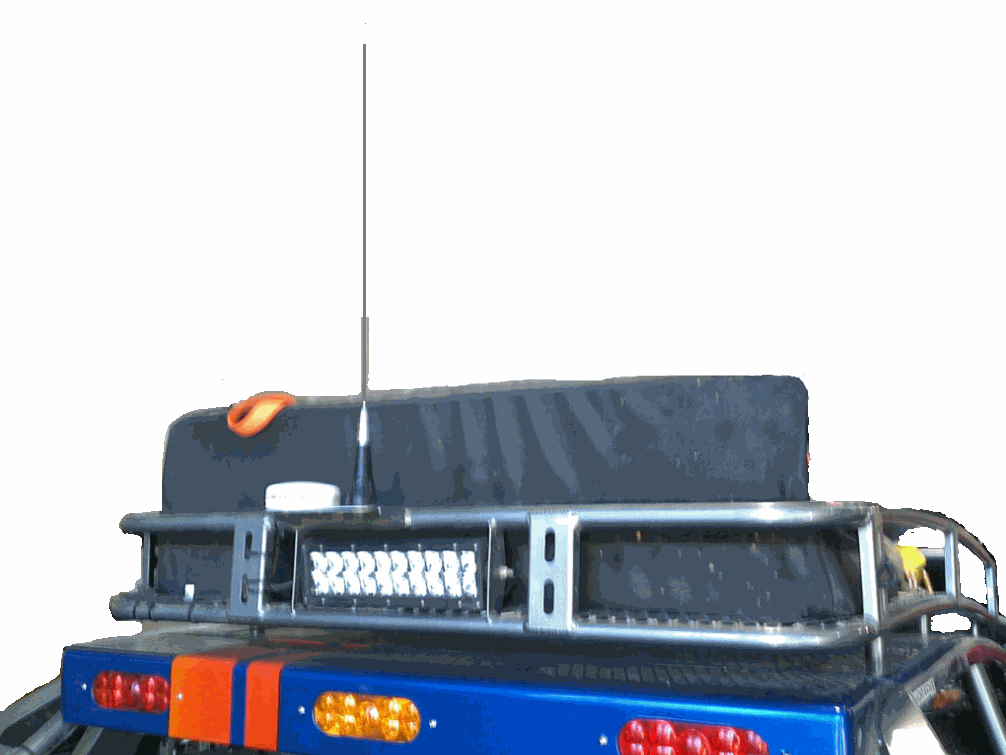
  3. Connect a good quality antenna, tuned to the operating frequency, to the RF connector on the front of the modem. Use a good antenna, and mount it is at as high-above obstructions as possible. On the roof is the best.

    Avoid using magnet-mount antennas for race vehicles. They may be OK for a chase vehicle if the driving and terrain is not too rough.
  4. Connect a GPS antenna to the SMA connector of the RV-M7 GX. Although a passive antenna may work if the cable length is very short, it is recommended that an amplified antenna be used, rated at 3.3V operation. Mount the GPS antenna so it can see the sky. On the roof of the vehicle is best. You may have to experiment with locations to find one that is easy to mount the antenna to and can also see the sky. There are two popular mounting methods: thru-hole and magnet-mount. If you use a magnet-mount GPS antenna, we recommend you also zip-tie it to the vehicle.
  5. Wire the GPS display or computer, terminal, controller, or other hardware device that will be using the RV-M7 to its DB-9 serial I/O connector using a shielded cable. Secure it to the RV-M7 with the two mounting screws on the sides of the DB-9 connector. For a tracking-only application, nothing needs to be wired to the DB9 connector of the M7. Only if you have an in-vehicle display do you connect to the DB9. The following section describes how to wire in a Lowrance to the M7, but most other displays will be similar. More GPS display information is on Raveon’s web site here: http://ravtrack.com/GPStracking/category/installation/

Lowrance 480, 540C, 7200 and 840C Wiring

From the Lowrance technical manual, here is how their NMEA 0183 interface works:
NMEA 0183 Cable Connections
NMEA 0183 is a standard communications format for marine electronic equipment. For example, an autopilot can connect to the NMEA interface on the GlobalMap 540c and receive positioning information. The GlobalMap 540c can exchange information with any device that transmits or receives NMEA 0183 data. See the following diagram for general wiring connections. Read your other product’s owner’s manual for more wiring information.

Below is the cable diagram from the Lowrance user manual for the data cable. Often, installers will cut-off the data cable wires, making the connection to the cable a challenge.

NMEA 0183 Wiring (Data cable)

To exchange NMEA 0183 data, the GlobalMap 540c has one NMEA 0183 version 2.0 communication ports. Com port one (Com-1) can be used to receive NMEA format GPS data. The com port can also transmit NMEA format GPS data to another device. The four wires for the com port are combined with the Power Supply cable and NMEA 2000 Power cable to form the power/data cable (shown earlier). Com-1 uses the yellow wire to transmit, the orange wire to receive and the shield wire for signal ground. Your unit does not use the blue wire.

The M7 DB9 Serial Connector

The 9-pin serial I/O connector to the M7 is a female 9-p D-subminiature connector having the following pins configuration.
Front-view of DB-9 connector on modem (female)

Pin # Name Dir Function Level / Specification
1 CD out Carrier detect
2 RxD out Receive data Data out of the modem.
3 TxD in Transmit data Data into the modem.
4 DTR in Data terminal ready Normally ignored by the FireLine modem.
5 GND Ground connection Signal and power ground
6 DSR out Data Set Ready
7 RTS in Request to send
8 CTS out Clear to send
9 Power In/out DC power (not Ring signal) User may supply the DC power to the modem on this pin.

Wiring the DB9

The Lawrence’s “Data Cable” must be connected to the M7 transponder. This connection will allow the M7 to put icons on the screen of the Lowrance display, showing the location of other tracked vehicles. The Raveon M7 GPS transponder uses a 9-pin “DB9? connector to connect to the Lowrance. Solder the Lowrance data cable wires onto a DB9 connector and plug the DB9 into the M7 transponder as shown below:
The orange wire goes to pin two of the DB9, the yellow wire to pin 3, and the shield braid of he cable connects to pin 5 of the DB9. The blue wire is trimmed off.
The extra wires on the Lowrance display called NMEA 2000 power are typically not used in a vehicle installation, and may be wrapped up with electrical tape and tucked away.

Configuring the Lowrance

Set the NMEA communication of the Lowrance to 4800 baud. System Setup > Communications Port. Enable NMEA 0183 input and set the baud to 4800.

Configuring the M7 GX Transponder

Raveon has a designed the M7 GX transponder to work with Lowrance Display or any other NMEA 0183 display that can accept the “$GPWPL” NMEA message. The $GPWPL is an industry standard message that the Lowrance displays and many other GPS displays interpret as a waypoint command. The M7 GX outputs this $GPWPL message to put icons on the screen of the Lowrance, and to move the icons around on its screen.
To configure the M7 transponder to output the $GPWPL message, set the M7 GX to GPS mode 2. To do this, put it into the configuration mode by send the +++ into the serial port. The M7 will respond with an OK. Type GPS 4 and press enter to put it into GPS 4 mode. GPS 4 is the mode that causes the M7 GX to output $GPWPL messages whenever it receives a status/position message over the air.

How Far Can I track my Vehicle?

A quick answer: About as far as a standard voice radio will allow you to talk.
In flat wide-open areas, such as deserts, grasslands, and farms, vehicle-to-vehicle communications will be 2 miles on the low end and often as much as 10 miles on the high end. A base-station, either with a 15-meter tower or placed on a local hill, will reliably communicate out to 10 miles, and often out to 20-30 miles.
In a rolling hills area, such as much of Nevada, Wisconsin, or Baja Mexico, vehicle-to-vehicle range will be 1-2 miles as long as both vehicles are not in a valley. The range will often go up to 15+ miles as both vehicles crest hills. A base-station, either with a 15-meter tower or placed on a local hill, will reliably communicate out to 7 miles, and often out to 20-40 miles.
In mountainous areas or wooded hills, such as much of Colorado, Tennessee, and northern California, vehicle-to-vehicle range will be ½ – 5 miles and will also be very sporadic depending on the terrain between the vehicles. The M7 GX takes advantage of this by frequently reporting its position, so that as vehicles crest peaks, they can receive location transmissions from a long way away. Often the vehicle-to-vehicle range will be as far as 15+ miles as the vehicles both crest hills. A base-station placed on a mountain top can extend reliable communicate out to 10+ miles, and often out to as much as 50 miles.
In urban areas and cities, structures will create multi-path and interference, reducing the usable range. Communications will be very similar to operation in rolling hills. Vehicle-to-vehicle range will be 1-3 miles. A base-station either with a 15-meter tower or placed on a local hill, will reliably communicate out to 5-7 miles, and often out to 10 miles.
Raveon Technologies Corporation
990 Park Center Drive, C
Vista, CA 92081
sales@raveontech.com
760-727-8004

Configuring DB9 cable with Intel Atom Motherboard

If you are using an Intel Atom motherboard and processor combo as the base station for a Ravtrack vehicle tracking system, the computer may not boot properly due to the radio supplying a signal on the DB9 connector to the RD input of the computer.  When RD input (pin 9 of the DB9 RS232 serial connector) is powered as the PC boots, Intel motherboards have problems booting.  There are 2 different ways to go about fixing this problem. The simplest one is to unplug the serial cable from the radio at boot and then plug back in once computer is booted. The other option is to cut one of the wires in the DB9 ribbon cable.  To do the second option, first open up the computer case and locate the serial cable that goes from the com port on motherboard to the radio.

Once you have located the cable, next take off the cover of the DB9 cable on the other end where it plugs into the radio to expose where the ribbon cable is soldered onto the connector. This is where we cut the cable so as to keep it covered and looking clean.

The wire needing to be cut is the second one from the right when looking at the connector from the bottom. It is recommended that you take out a small section of the wire so as to not risk any accidental contact.

Examples of events triggering fast reporting

The standard M7-GX GPS tracking transponder has 2 separate reporting rates, the TXRATE and the IDLERATE.   In many deployments the TXRATE and IDLERATE are identical.  However, in some deployments the IDLERATE is set to transmit position less frequently than the TXRATE unless a specified event occurs.

Some of these events include:

Speed of travel greater than a user specified value (TRIGSPEED parameter)

Distance of travel greater than a user specified value (TRIGDX parameter)

Proximity to another GX transponder less than a user specified value (PROX parameter).

Here are three examples of using this flexibility in your system.

Example – Using TRIGSPEED

Picture a police squad car sitting idle or cruising slowly through a neighborhood on patrol.  In this instance it may not be important for the vehicle to transmit a position report more frequently than every 2 minutes.  If this is the case IDLERATE can be set for 120 (seconds).  However, the same squad car may later be move at higher speeds and reporting more frequently becomes important .  In our example the system administrator has set the fastest reporting frequency at 10 seconds (TXRATE 10).    When the car speed exceeds a certain threshold, let’s say 40kph (TRIGSPEED 40) the TXRATE is invoked and reports are now sent every 10 seconds.  When the car slows down, the IDLERATE again takes over, and transmissions are less frequent.

Example – Using TRIGDX

Your public works department has a number of vehicles out every day serving the community.  A vehicle and crew may stop for a while and work at a particular site.   While at the site they may even move the vehicle around a bit, to aid in the work.  While on the site a position report rate frequency of 5 minute intervals is perfectly adequate.  However, when they pick up and start moving to a new site, you’d like to be able to track their progress and know where they are more frequently, once they’ve moved 100 feet or so.  In this case your maximum system reporting frequency is twice a minute , or TXRATE 30 (seconds)   Set IDLERATE 300 (seconds), and TRIGDX 30 (meters).  30 meters is roughly 100 feet.

Example-Using PROX

You drive aheavy equipment in an open pit mine, or on a construction site.  The visibililty from your cab isn’t all that great, and you drive and operate your equipment as carefully as possible at all times.  In a move to further improve safety your company has placed a tracking display in your vehicle, allowing you to display the location of all of your other RavTrack transponders within radio range.  Your system administrator has set the following parameters in all of your transponders:

IDLRATE 10 (seconds)

TXRATE 2 (seconds)

PROX 15 (meters)

During your normal activities the display in your vehicle updates the location of all other transponders every 10 seconds.  Somewhere along the line, one of your coworkers, while on foot, comes close to your equipment.  Your co-worker  (Jim) is wearing on his belt the ATLAS PL personal locator.  When he gets within 50 feet of you (about 15 meters) your transponder, which was transmitting at 10 second intervals, starts  transmitting positions ever 2 seconds – and so does his ATLAS PL unit.  Now the blip on your display that represents your Jim starts pulsing every 2 seconds, perhaps a light has also lit on your dashboard, or a buzzer sounds in your cab, alerting you to Jim’s nearby presence.

We will cover the integration of warning lights and buzzers in another tech blog.

For the more technically minded, here is the logic flow chart the GPS transponder tests internally every TXRATE.

TXRATE logic flowchart